 Bouncer Docs
WhatsApp Connections
Bouncer Direct
Connect WhatsApp by scanning a QR code, like WhatsApp Web
Connect your WhatsApp by scanning a QR code, just like WhatsApp Web. No Meta approval or business verification needed - messages sync to both your phone and Bouncer.
Before you start
You'll need:
- A phone with WhatsApp installed
- Access to your Bouncer dashboard
Connect your WhatsApp
- Go to WhatsApp Connections in the sidebar
- Click Add New Connection
- Enter an instance name (e.g., "My WhatsApp" or your business name)
- Click Create Connection
A QR code appears on screen.
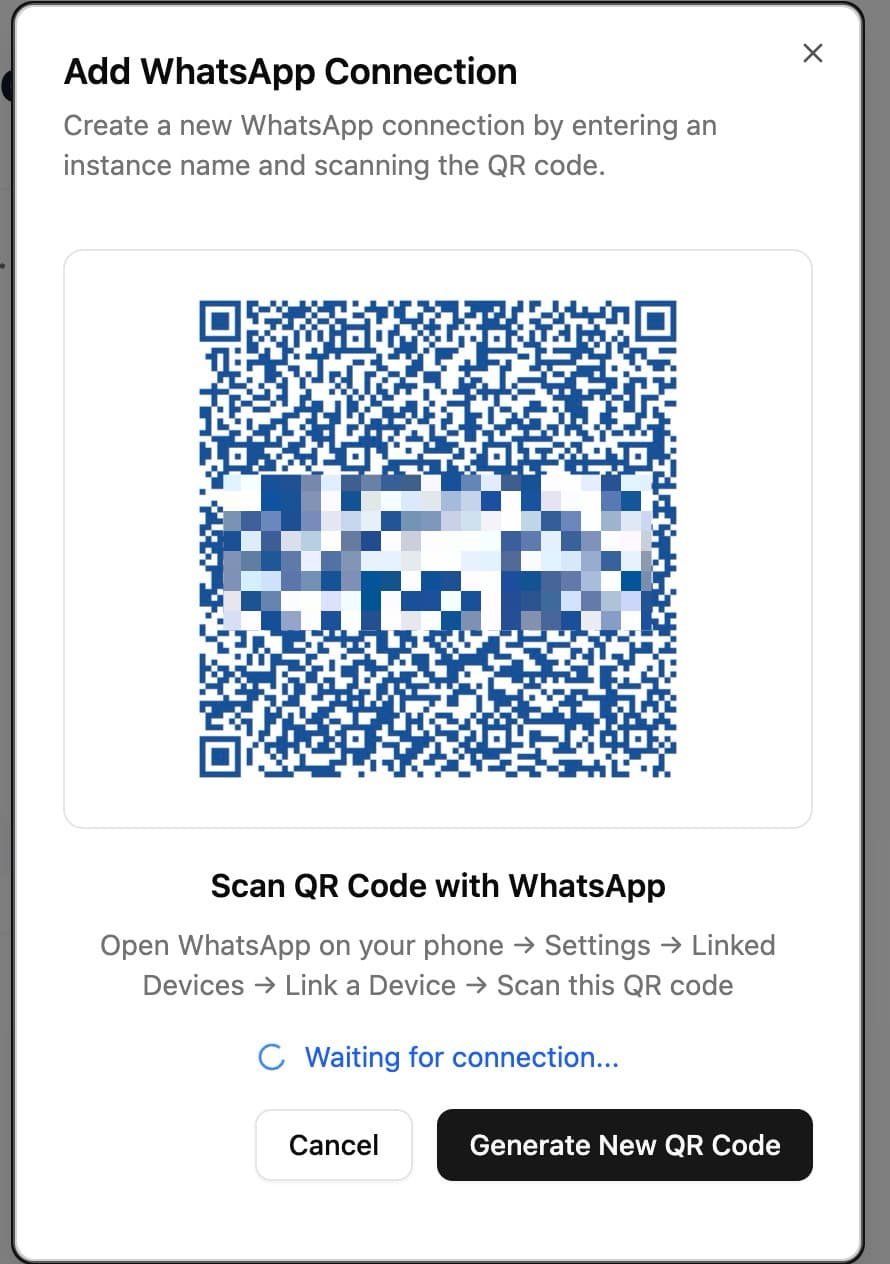
- Open WhatsApp on your phone
- Go to Settings → Linked Devices
- Tap Link a Device
- Scan the QR code
Wait a few seconds for the connection to complete.
Verify your connection
Once connected, you'll see your WhatsApp details:
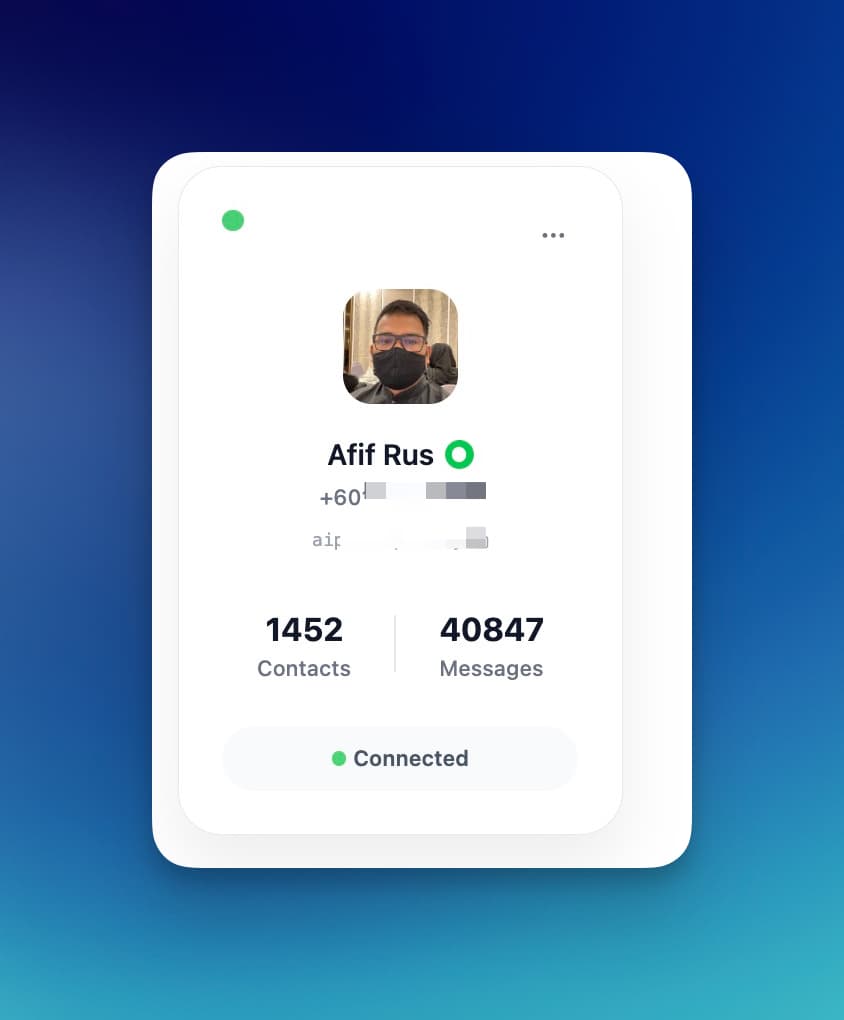
- Status: Connected
- Phone Number: Your WhatsApp number
- Profile Name: Your WhatsApp name
- Profile Picture: Synced automatically
Keep your connection active
Bouncer Direct works through WhatsApp's linked devices feature. To maintain a stable connection:
- Keep your phone connected to the internet
- Don't unlink the device from WhatsApp settings
- If disconnected, scan the QR code again to reconnect
Limitations
Bouncer Direct has some differences from Meta Cloud API:
- Linked device limits - WhatsApp allows up to 4 linked devices per number
- Session dependency - Requires your phone to sync periodically
For higher volume or template messaging, consider Meta Cloud API.