 Bouncer Docs
Team Inbox
Manage WhatsApp conversations with your team
The Team Inbox is your central hub for managing WhatsApp conversations. View messages, reply to customers, assign conversations to team members, and collaborate with internal comments.
Access the Team Inbox from Chat in the sidebar, or go directly to app.bouncer.my/dashboard/chat.
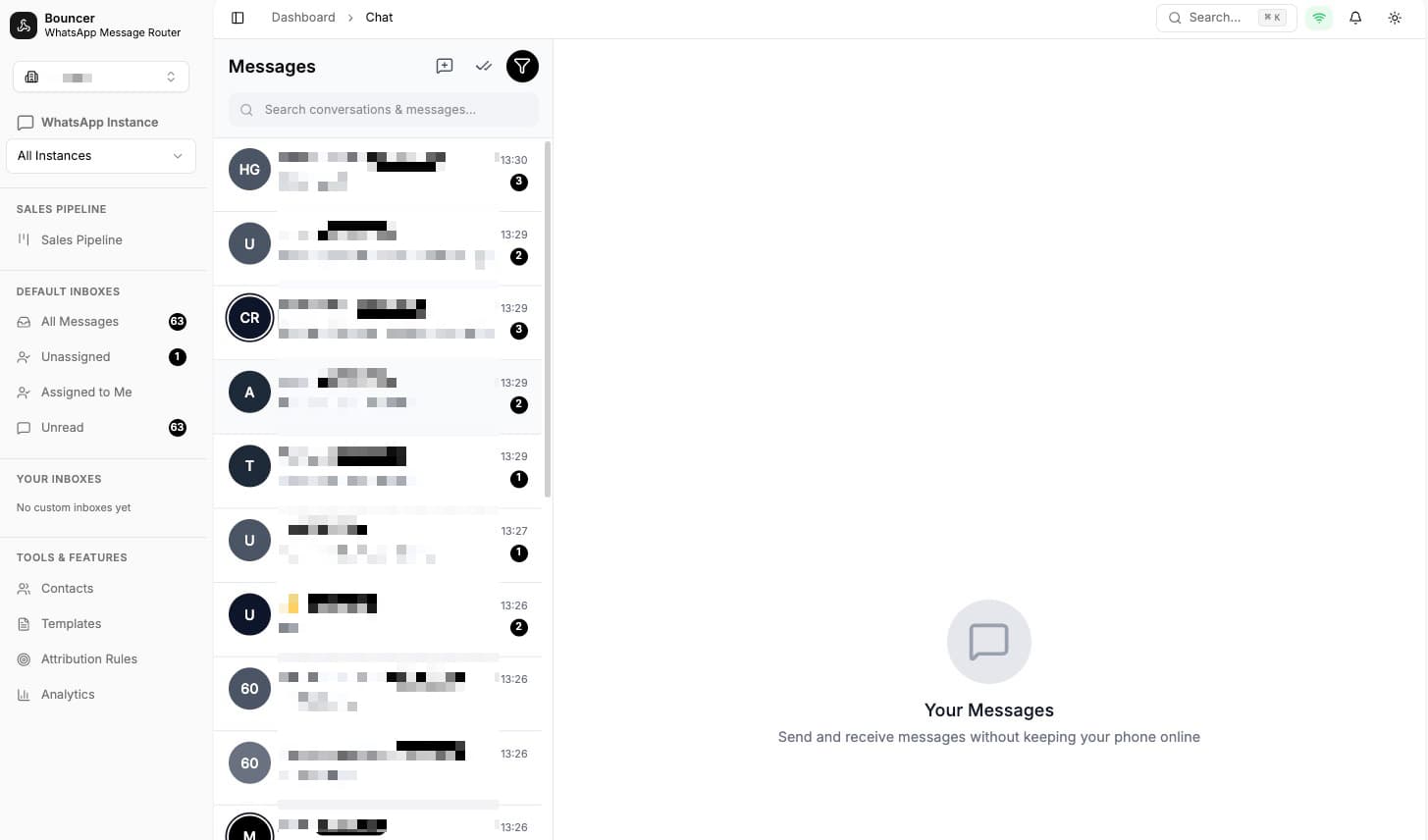
Interface overview
The Team Inbox has three main areas:
- Left sidebar - Conversation list with inbox filters
- Center - Message thread and input area
- Right panel - Contact info, comments, or starred messages
Inbox views
Filter conversations using preset inbox views:
| View | Shows |
|---|---|
| All | Every conversation |
| Unread | Conversations with unread messages |
| Assigned to me | Conversations assigned to you |
| Unassigned | Conversations without an assignee |
Create custom inbox views with specific filters for your workflow.
Switching WhatsApp instances
If you have multiple WhatsApp numbers connected to Bouncer, you can switch between them using the instance dropdown at the top of the conversation list.
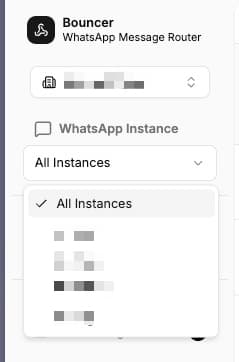
- All Instances - View conversations from all connected WhatsApp numbers
- Specific instance - Select a single WhatsApp number to see only its conversations
This is useful when you manage multiple brands, departments, or regional numbers. Each instance keeps its conversations separate, so you can focus on one at a time or view everything together.
To connect additional WhatsApp numbers, go to Connections.
Key features
Real-time messaging
Messages appear instantly without refreshing. See typing indicators and delivery status for each message.
Multi-instance support
If you have multiple WhatsApp numbers connected, filter conversations by instance using the dropdown at the top of the conversation list.
Team collaboration
- Assign conversations to specific team members
- Add comments for internal discussion (customers don't see these)
- Star messages to mark important information
- Add tags to categorize conversations
Collision detection
When multiple team members view the same conversation, you'll see their avatars in the header. This prevents duplicate responses.
Drag and drop files
Drop images, videos, documents, or audio files directly into the chat area to attach them to your message.
Use cases
Customer support
Use the Team Inbox as your primary customer service hub. Assign incoming conversations to support agents, use internal comments to discuss issues without the customer seeing, and tag conversations by topic (billing, technical, etc.) for easy filtering and reporting.
Sales inquiries
Route sales conversations to your sales team. Star important messages containing customer requirements, and use the contact panel to view conversation history before responding.
Multi-brand management
If you manage multiple WhatsApp numbers for different brands or departments, switch between instances using the dropdown at the top of the conversation list. Each instance shows only its own conversations, keeping your inbox organized.
After-hours handoff
When your shift ends, leave internal comments summarizing the conversation status. The next team member can quickly catch up by reading comments before responding to the customer.
Quick actions
Right-click any conversation for quick actions:
- Mark as read/unread
- Pin to top
- Mute notifications
- Assign to team member
- Add tags
- Archive
Session windows (Cloud API)
For Meta Cloud API connections, a session window indicator shows how long you can continue the conversation without sending a template message.
- Green clock - Session active, can send free-form messages
- No clock - Session expired, must use a template to restart