 Bouncer Docs
Developer & API Keys
Create API keys and manage integrations from the Bouncer Developer dashboard
Developer Settings is where you create API keys for external integrations like the WooCommerce plugin, n8n, Zapier, or your own applications.
Go to Developer in your dashboard sidebar (under Integrations & Configuration), or visit app.bouncer.my/dashboard/developer.
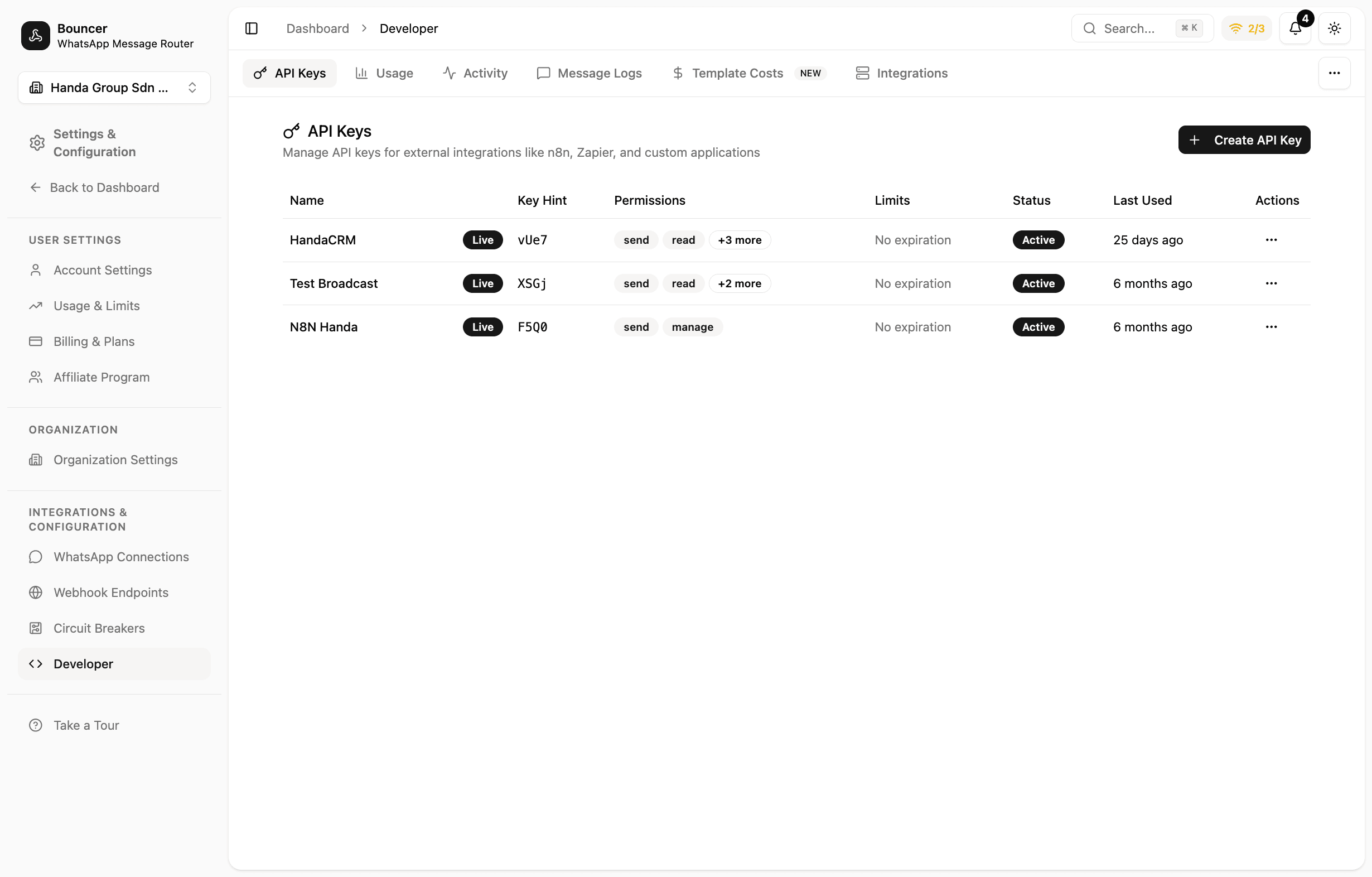
The Developer page has these tabs: API Keys, Usage, Activity, Message Logs, Template Costs, and Integrations. Existing keys are listed with their name, key hint, permissions, limits, status, and last-used time.
Create an API key
On the API Keys tab, click Create API Key. The Create New API Key dialog has three tabs: Details, Anti-Ban, and Permissions.
Details
- Key Name — a descriptive name, e.g.
WooCommerce Storeorn8n Integration - Description (optional) — what the key is used for
- Environment — choose one:
- Live Key — full production access for customer-facing integrations (default)
- Test Key — safe sandbox for development and QA
Anti-Ban (optional)
The Anti-Ban tab adds delays between messages to avoid WhatsApp's spam detection. It applies to Baileys/WAHA instances. See Anti-ban throttling below. Leave it Off if you don't need it.
Permissions
Pick the scopes the key is allowed to use. Sensible defaults are pre-selected (Send Messages, Read Instances, Manage Conversations, Manage Webhooks) — these cover most integrations, including the WooCommerce plugin.
Create and copy
Click Create API Key, then copy your key immediately.
The full key is shown only once. Copy and store it securely — you can't view it again later. If you lose it, delete the key and create a new one.
Permissions
Each API key carries a set of permissions that control what it can do:
| Permission | Scope | What it allows |
|---|---|---|
| Send Messages | message:send | Send text, media, location, and contact messages |
| Read Instances | instance:read | View WhatsApp instance information |
| Manage Instances | instance:manage | Create, update, and delete WhatsApp instances |
| Read Usage | usage:read | View API usage statistics and metrics |
| Read Webhooks | webhooks:read | View webhook configurations |
| Manage Webhooks | webhooks:manage | Create, update, and delete webhook configurations |
| Read Organization | organization:read | View organization information |
| Manage Conversations | conversation:manage | Manage conversation states for bot-to-human handover |
Select only the permissions your integration needs. For the WooCommerce plugin, the defaults (Send Messages, Read Instances, Manage Conversations, Manage Webhooks) are sufficient.
Anti-ban throttling
On the Anti-Ban tab of the key dialog, choose a Throttle Mode:
- Off — no throttling (default)
- Fixed Delay — a constant delay between messages
- Random Delay (Recommended) — a random delay within a range for human-like behavior
- Smart — random delay plus batch cooldowns for heavy usage
Recommended starting values (used by Random and Smart):
- Min Delay:
3seconds - Max Delay:
8seconds - Max Queue Size:
20
Using your API key
Include your API key in the Authorization header:
curl -X POST https://api.bouncer.my/api/v1/messages/send \
  -H "Authorization: Bearer bnc_live_your_key_here" \
  -H "Content-Type: application/json" \
  -d '{"instanceId": "...", "to": "...", "message": "..."}'
Test keys are prefixed bnc_test_ and live keys bnc_live_.
Monitoring
The Developer dashboard also provides:
- Usage — request counts, error rates, and top endpoints
- Activity — recent webhook deliveries and responses
- Message Logs — outbound message history
- Template Costs — per-template messaging cost breakdown
- Integrations — connect and configure external services
API reference
For complete API documentation including all endpoints, request/response formats, and examples: