 Bouncer Docs
Custom Inboxes
Create filtered inbox views for your team
Custom inboxes let you create filtered views of your conversations. Use them to organize work by team member, topic, priority, or any combination of filters.
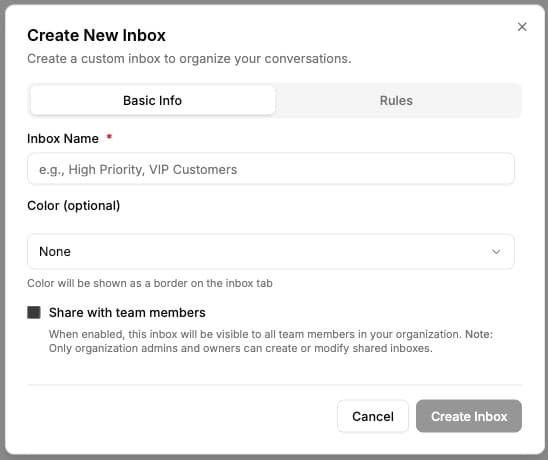
Creating a custom inbox
- Go to Settings in the sidebar
- Select the Inboxes tab
- Click Create Inbox
- Configure your filters and save
Use cases
Personal inbox per agent
Create an inbox for each team member that shows only conversations assigned to them. This gives agents a focused view of their workload without distractions from other conversations.
Department queues
Set up inboxes for different departments:
- Sales Inbox - Filter by "sales" tag
- Support Inbox - Filter by "support" tag
- Billing Inbox - Filter by "billing" tag
Team members can monitor their department's queue while managers can view all inboxes.
Priority handling
Create inboxes based on urgency:
- VIP Customers - Filter by "vip" tag for high-priority customers
- Urgent Issues - Filter by "urgent" tag for time-sensitive matters
- Follow-ups - Filter by "follow-up" tag for conversations needing a response
Instance-specific views
If you manage multiple WhatsApp numbers, create inboxes filtered by instance:
- Brand A Support - Filter by Brand A's WhatsApp instance
- Brand B Support - Filter by Brand B's WhatsApp instance
Unassigned triage
Create an inbox showing only unassigned conversations. Team leads can use this to distribute new conversations to available agents.
Filter options
When creating a custom inbox, you can filter by:
| Filter | Description |
|---|---|
| Assignee | Show conversations assigned to specific team members |
| Tags | Filter by one or more conversation tags |
| Instance | Show conversations from a specific WhatsApp number |
| Status | Filter by read/unread or open/archived status |
Combine multiple filters to create precise inbox views for your workflow.