 Bouncer Docs
Managing Conversations
Organize and manage your WhatsApp conversations
Learn how to organize, filter, and manage conversations in the Team Inbox.
Conversation list
The left sidebar shows all your conversations. Each conversation displays:
- Contact name or phone number
- Last message preview with timestamp
- Unread count badge
- Assignment indicator
- Instance the conversation belongs to
Sorting
Conversations are sorted by most recent activity. Pinned conversations always appear at the top.
Filtering by instance
Use the instance dropdown to filter conversations by WhatsApp connection. Select "All" to see conversations from all connected numbers.
Assignments
Assign conversations to team members to clarify ownership and prevent duplicate responses.
Assigning a conversation
- Open the conversation
- Click the Info button in the header
- Select a team member from the Assigned to dropdown
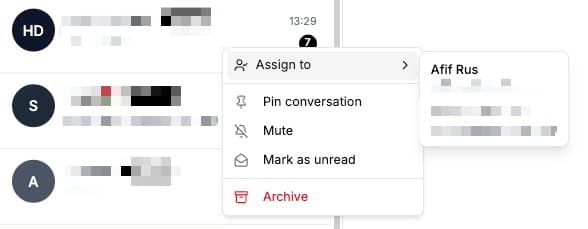
Or right-click the conversation and select Assign to.
Viewing your assignments
Click Assigned to me in the inbox sidebar to see only conversations assigned to you.
Auto-assignment rules
Set up rules to automatically assign conversations based on:
- Keywords in messages
- Contact tags
- Time of day
- Instance (WhatsApp number)
Configure auto-assignment in Settings > Assignment Rules.
Statuses
Track conversation progress with statuses:
| Status | Meaning |
|---|---|
| Open | Needs attention |
| Pending | Waiting for customer response |
| Resolved | Issue resolved, conversation closed |
Change status from the contact info panel or right-click menu.
Tags
Add tags to categorize conversations for easy filtering and reporting.
Adding tags
- Open the contact info panel (click Info in header)
- Click Add tag
- Select existing tags or create new ones
Filtering by tag
Create a custom inbox view with tag filters to see specific conversation types.
Internal comments
Add comments for team discussion without the customer seeing them.
- Click the Comments button in the header
- Type your comment
- @mention team members to notify them
Comments are attached to the conversation, not specific messages.
Starring messages
Star important messages for quick reference.
- Hover over a message
- Click the Star icon
View all starred messages by clicking the Star button in the header.
Pinning conversations
Pin important conversations to keep them at the top of your list.
Right-click a conversation and select Pin.
Muting notifications
Mute noisy conversations without missing messages.
Right-click a conversation and select Mute.
Searching
Search conversations
Use the search bar at the top of the conversation list to find conversations by:
- Contact name
- Phone number
- Message content
Search within conversation
Click the Search icon in the chat header to search messages within the current conversation.