 Bouncer Docs
WooCommerce
Send automatic WhatsApp order notifications and recover abandoned orders with the Bouncer WooCommerce plugin
The Bouncer WhatsApp plugin connects your WooCommerce store to Bouncer so you can send automatic WhatsApp notifications on order status changes, recover abandoned orders, and stream order events into your Bouncer workflows.
Before you start
You'll need:
- A WordPress site with WooCommerce active
- An active Bouncer account with at least one connected WhatsApp instance
- Your Bouncer API key — see Developer & API Keys for how to create one
- The plugin: github.com/m0d02x/wp-bouncer
The plugin requires WordPress 6.0+, WooCommerce 5.0+, and PHP 7.4 or higher.
Install the plugin
Download the plugin
Download the latest release from github.com/m0d02x/wp-bouncer as a .zip file.
Upload to WordPress
In your WordPress admin, go to Plugins → Add New → Upload Plugin, choose the .zip, and click Install Now.
Alternatively, copy the plugin folder into wp-content/plugins/bouncer-whatsapp via SFTP.
Activate
Click Activate on the Bouncer WhatsApp plugin. On activation it creates its log table and a background schedule for cleanup.
A new Bouncer WhatsApp menu appears in your WordPress sidebar.
Connect to Bouncer
Go to Bouncer WhatsApp → Settings. The Connection tab is where you link the plugin to your Bouncer account.
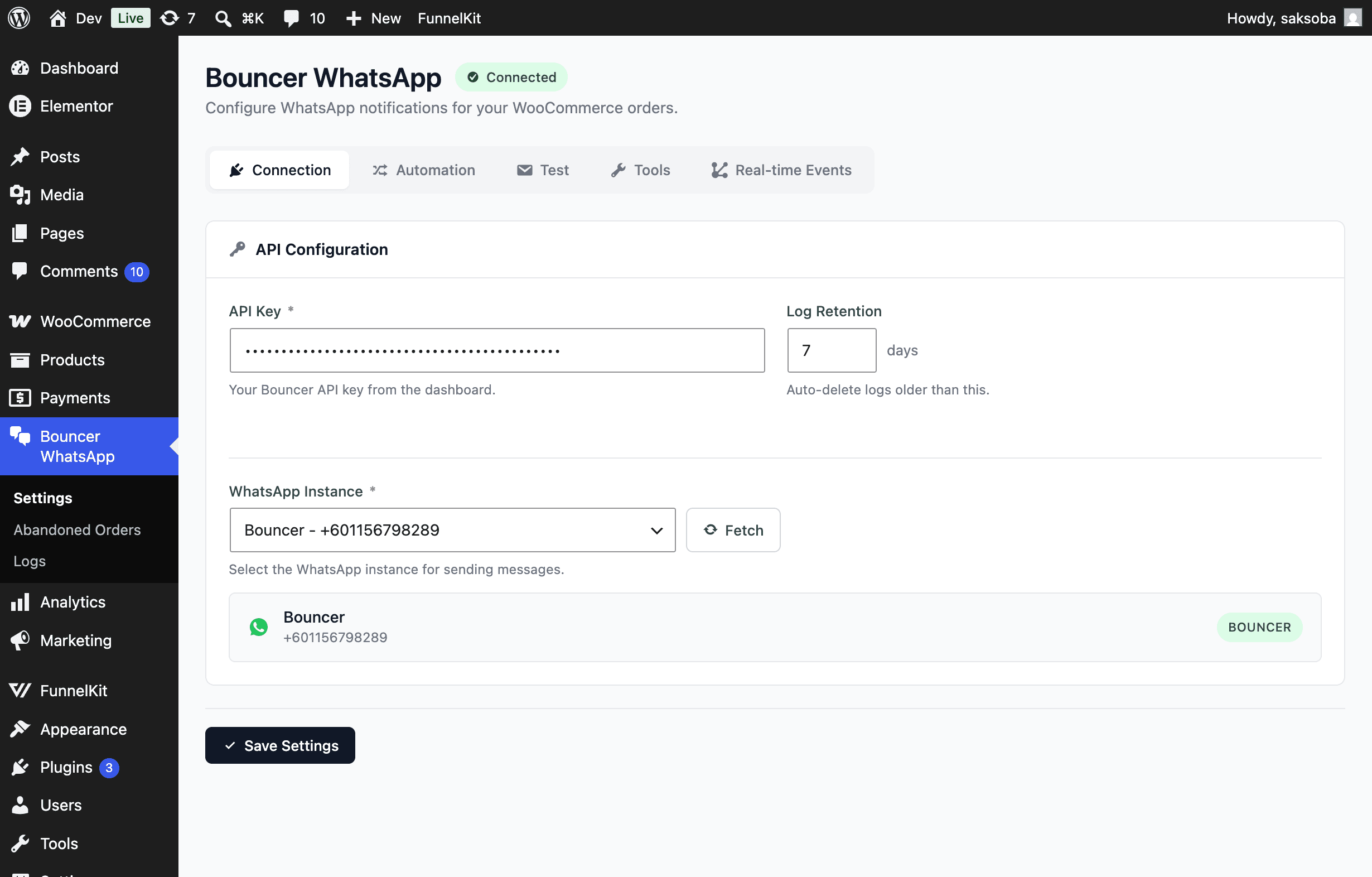
- Paste your API Key from the Bouncer dashboard. Don't have one yet? See Developer & API Keys.
- Set Log Retention (in days) — logs older than this are deleted automatically. Default is
7. - Click Fetch next to WhatsApp Instance, then select the instance you want to send from.
- Click Save Settings.
When the key and instance are valid, the header shows a green Connected badge.
Configure automation
Open the Automation tab to control what message goes out and which order statuses trigger it.
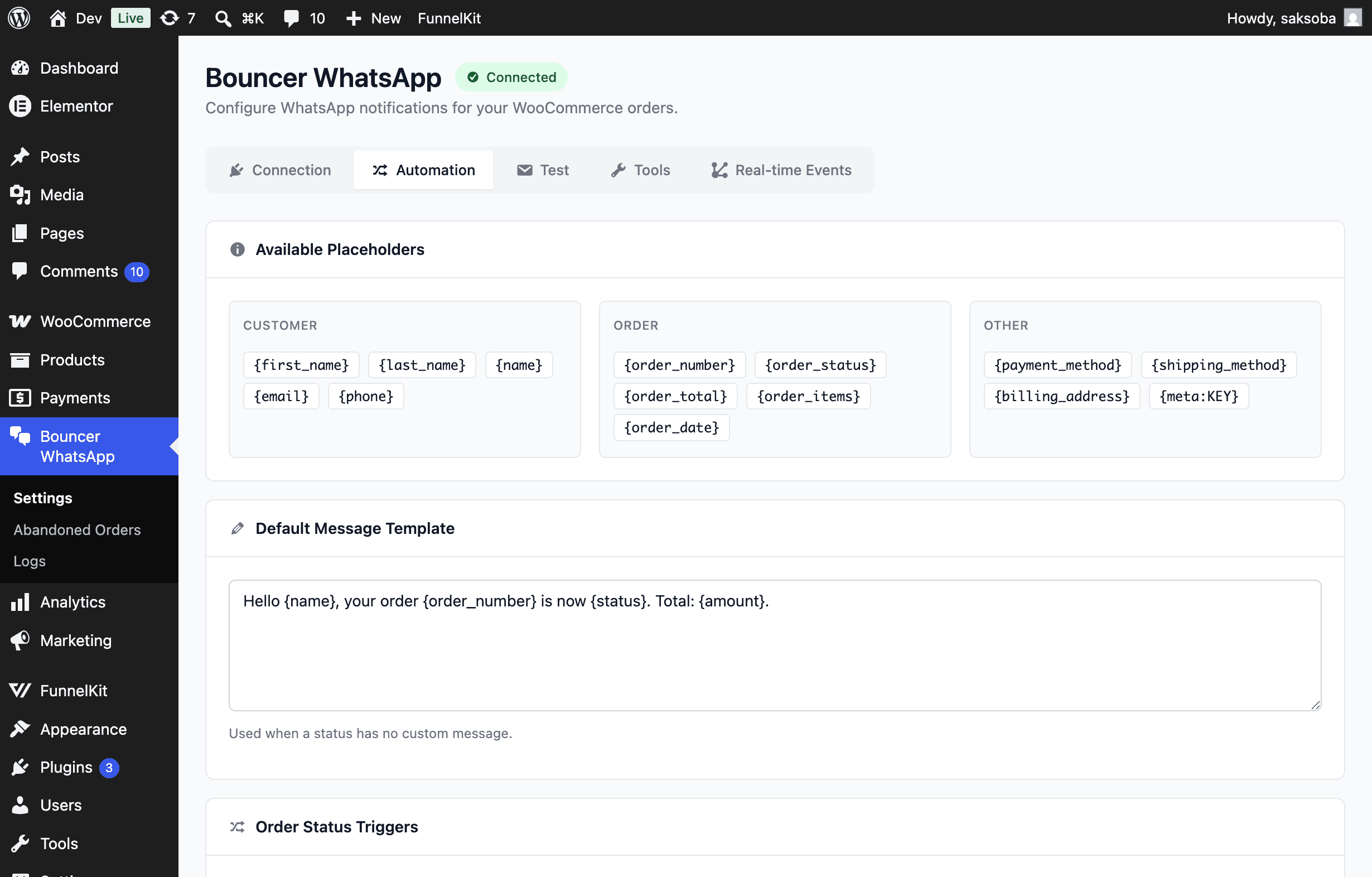
Default message template
The Default Message Template is used whenever a triggered status has no custom message. Use placeholders to insert order data:
| Placeholder | Description |
|---|---|
{first_name} / {last_name} / {name} | Customer billing name |
{email} / {phone} | Customer billing email and phone |
{order_number} | Customer-facing order number |
{order_status} | Human-readable status name |
{order_total} | Order total with currency |
{order_items} | List of purchased items |
{order_date} | Order creation date |
{payment_method} | Payment method title |
{shipping_method} | Shipping method(s) |
{billing_address} | Full billing address |
{meta:KEY} | Any order meta value for KEY |
Order status triggers
Under Order Status Triggers, enable the WooCommerce statuses that should send a WhatsApp message (e.g. Processing, Completed). You can set a custom message per status; statuses left blank fall back to the default template. Click Save when done.
Need ready-made messages for specific statuses? See Order Notifications for copy-paste templates (Order Processing, Order Completed) with variable mappings.
Send a test message
Use the Test tab to verify delivery before going live.
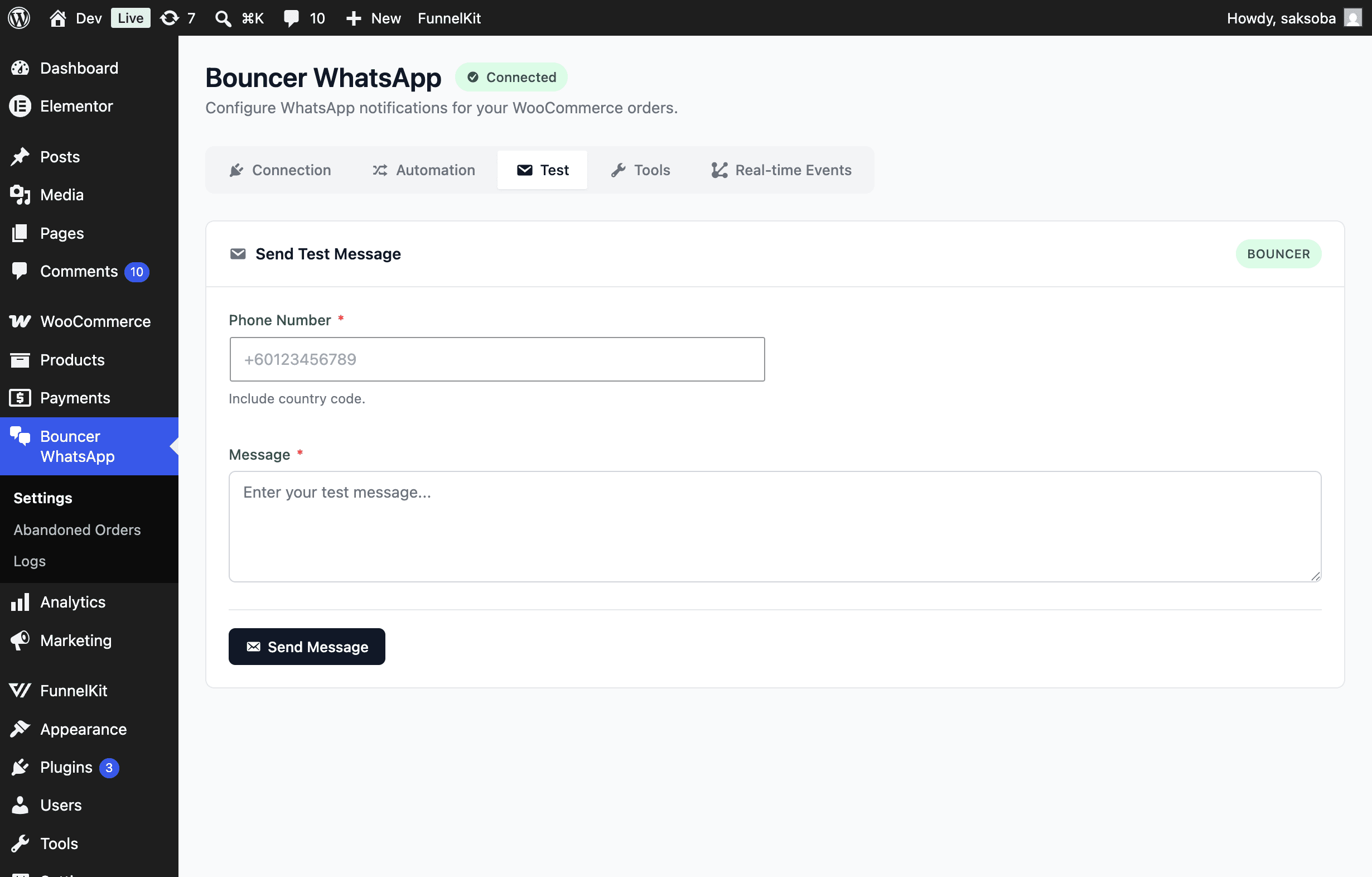
- Enter a Phone Number in international format (include the country code, e.g.
+60123456789). - Type a Message.
- Click Send Message.
The result is recorded in Logs.
Tools: health check & message preview
The Tools tab helps you confirm connectivity and preview a real order's rendered message.
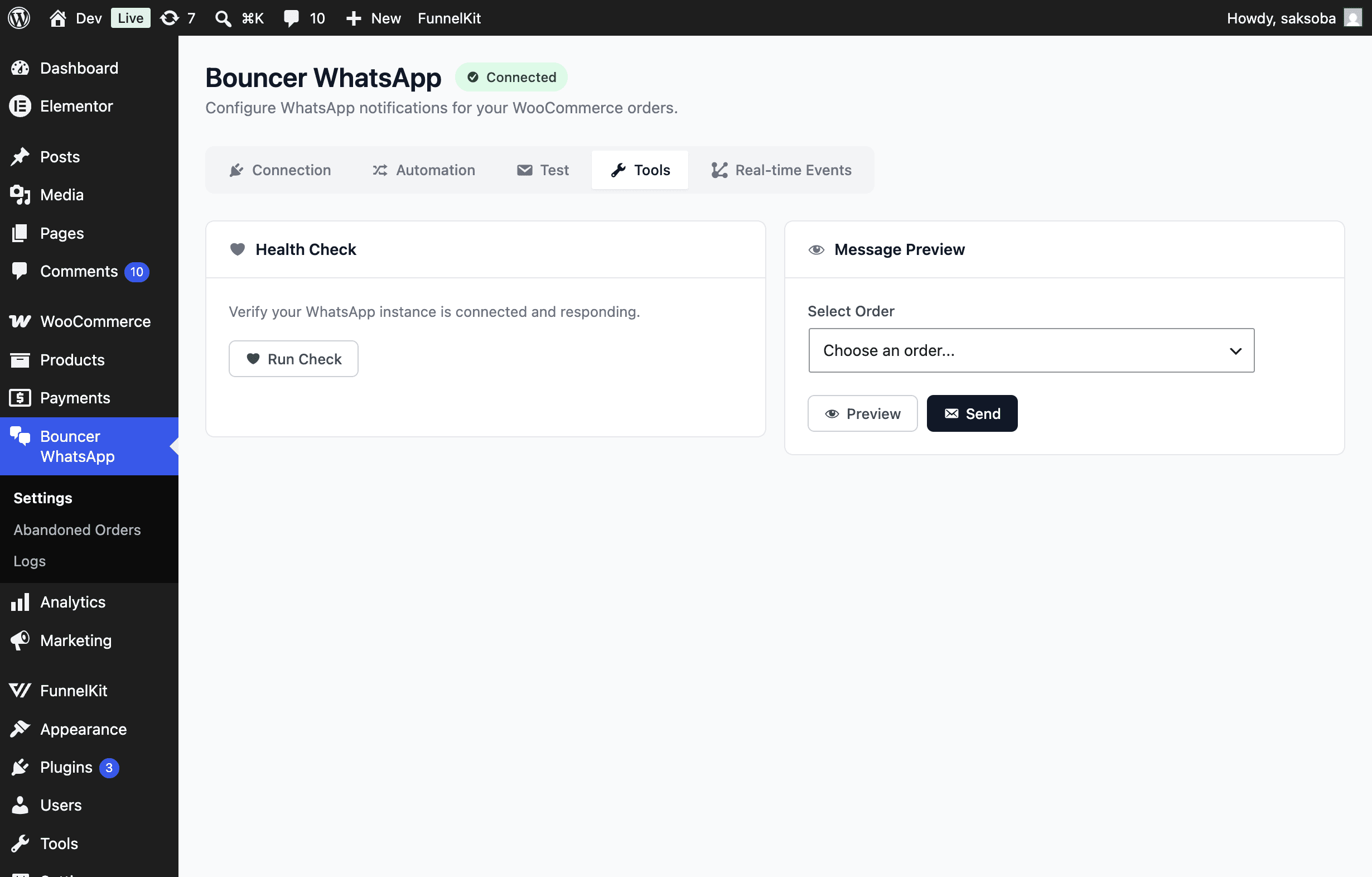
- Health Check — click Run Check to verify your WhatsApp instance is connected and responding.
- Message Preview — pick a recent order, then Preview the resolved template, or Send it to the customer's billing phone.
Real-time order events
The Real-time Events tab streams WooCommerce order events to Bouncer using WooCommerce webhooks. This is required for any Bouncer workflow that reacts to order changes. (Abandoned-cart recovery no longer uses these events — see Abandoned Order Recovery.)
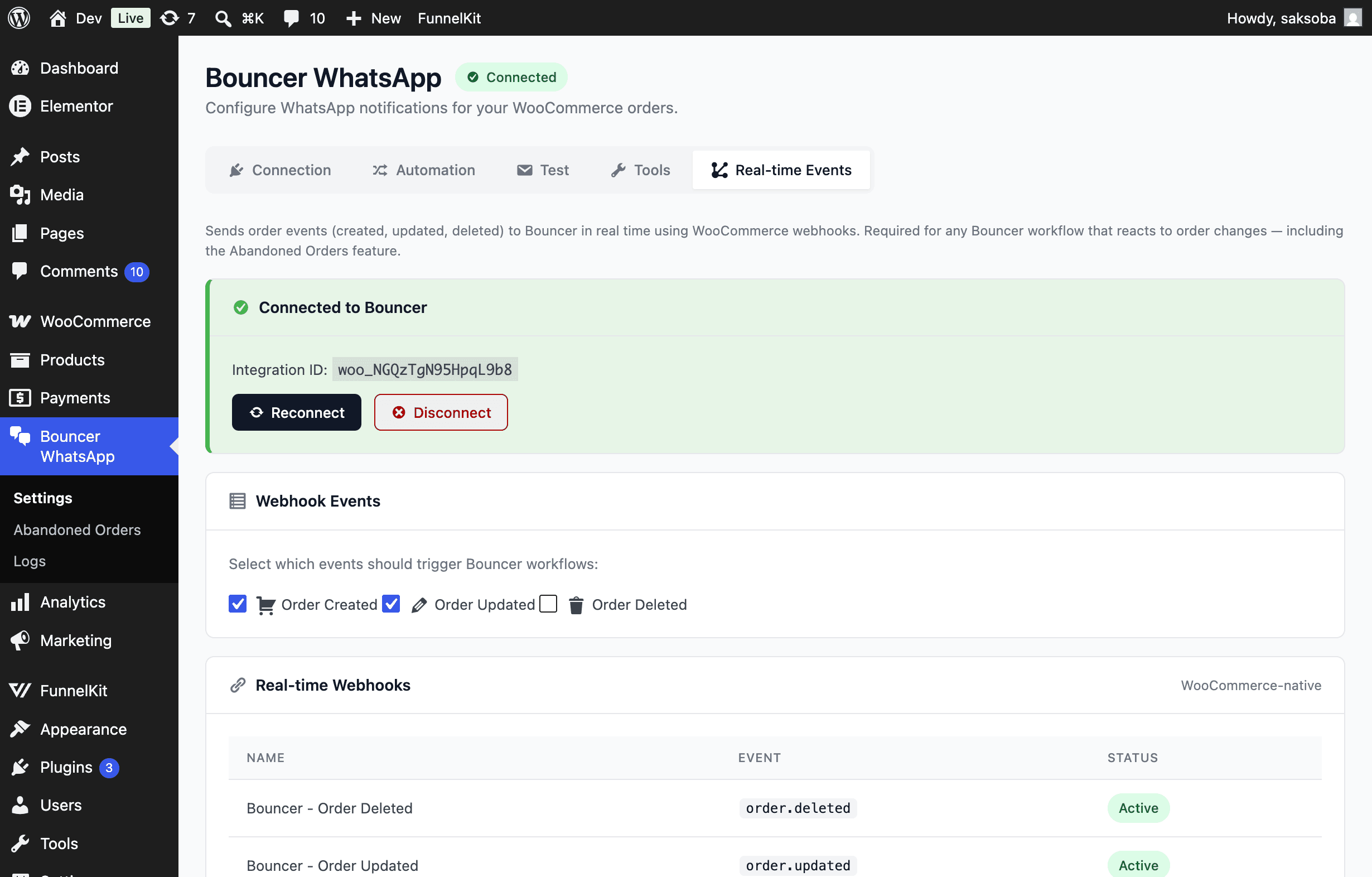
- The card shows Connected to Bouncer with your Integration ID once linked. Use Reconnect or Disconnect to manage the link.
- Under Webhook Events, choose which events trigger workflows: Order Created, Order Updated, Order Deleted.
- Real-time Webhooks lists the WooCommerce-native webhooks the plugin manages, with their event and status.
If you only need order-status notifications you can rely on the Automation tab. Real-time Events are needed when Bouncer workflows should react to order changes.
Abandoned order recovery
Recover abandoned carts with CartBounty and WhatsApp reminders at each recovery step. See the dedicated guide: Abandoned Order Recovery.
Message logs
Bouncer WhatsApp → Logs shows delivery history with Total Messages, Delivered, and Failed counters, plus a per-message activity table (date, order, phone, status, message, response).
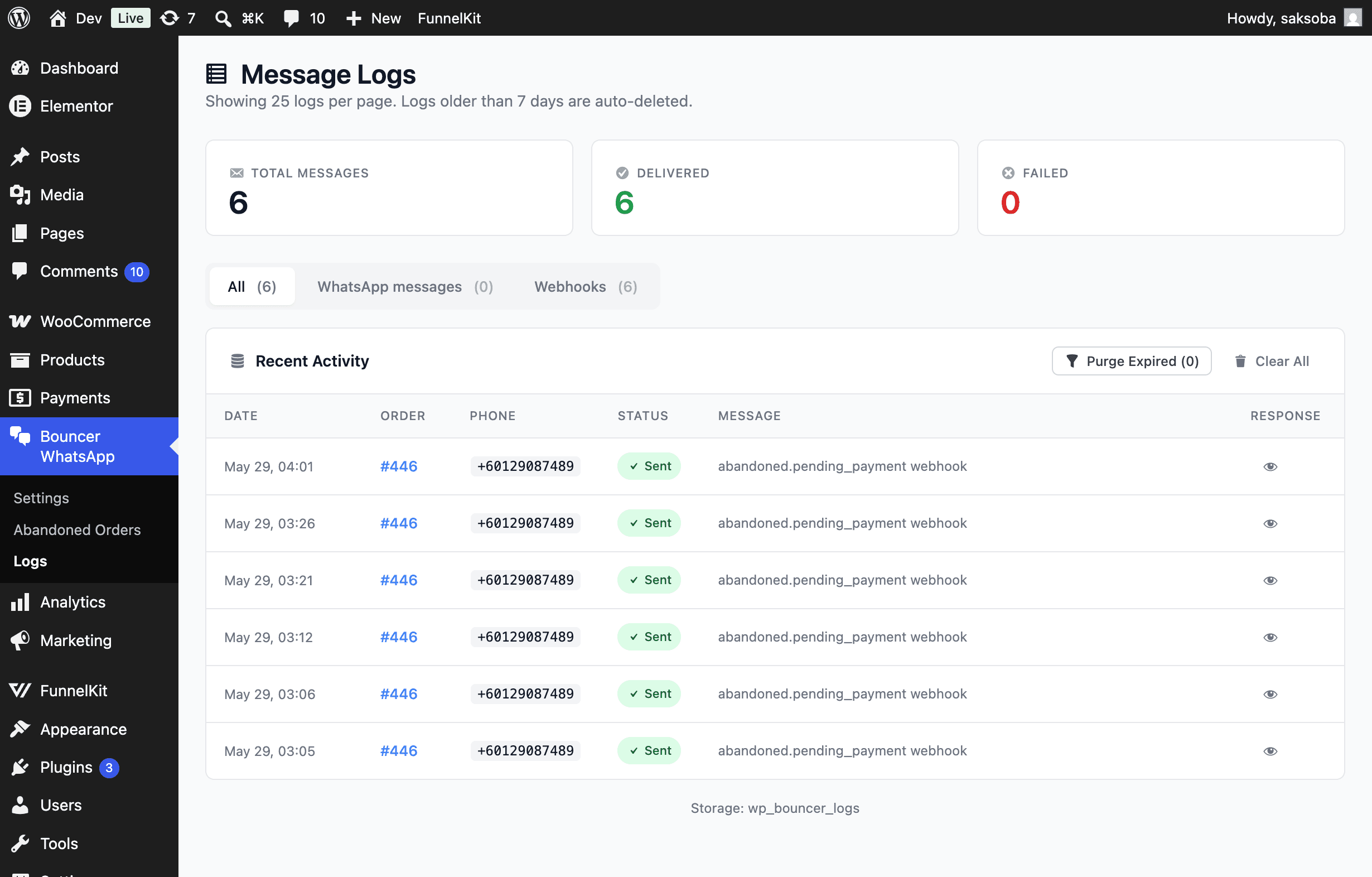
Filter by All, WhatsApp messages, or Webhooks. Use Purge Expired to remove entries older than your retention window, or Clear All to wipe the log. Logs older than the retention setting are deleted automatically.
Troubleshooting
| Symptom | Likely cause |
|---|---|
| Header shows Disconnected | API key is wrong or the selected instance is offline. Re-paste the key, click Fetch, reselect the instance. |
| Test message fails | Phone number missing country code, or the WhatsApp instance is not connected. Run Tools → Health Check. |
| Status change sends nothing | The status isn't enabled under Automation → Order Status Triggers, or the order has no billing phone. |
| Workflow never fires | Real-time Events is disconnected, or the event isn't enabled under Webhook Events. |
| CartBounty reminders not sent | CartBounty not installed, polling disabled, or the step template is empty. |