 Bouncer Docs
Webhook Endpoints
Set up where your WhatsApp messages should be sent
Webhook endpoints tell Bouncer where to send your WhatsApp messages. Think of them as delivery addresses for your messages.
What is a Webhook Endpoint?
A webhook endpoint is simply a web address (URL) where Bouncer sends your WhatsApp messages. When someone sends you a message on WhatsApp, Bouncer receives it and forwards it to your chosen endpoint.
How Webhook Endpoints Work
When you connect WhatsApp to Bouncer, an endpoint is automatically created in Collection Mode. This gives you immediate access to all your messages without any setup needed.
Understanding Endpoint Modes
Collection Mode (Default)
- Messages are stored in Bouncer for you to view later
- Perfect for getting started quickly
- No external URL needed
- Access your messages anytime through the dashboard
Forwarding Mode
- Messages are sent directly to your application or service
- Requires a destination URL (web address)
- Real-time message delivery
- Best for connecting to CRM systems or custom applications
Switching Between Modes
Your automatically created endpoint starts in Collection Mode. To switch to Forwarding Mode:
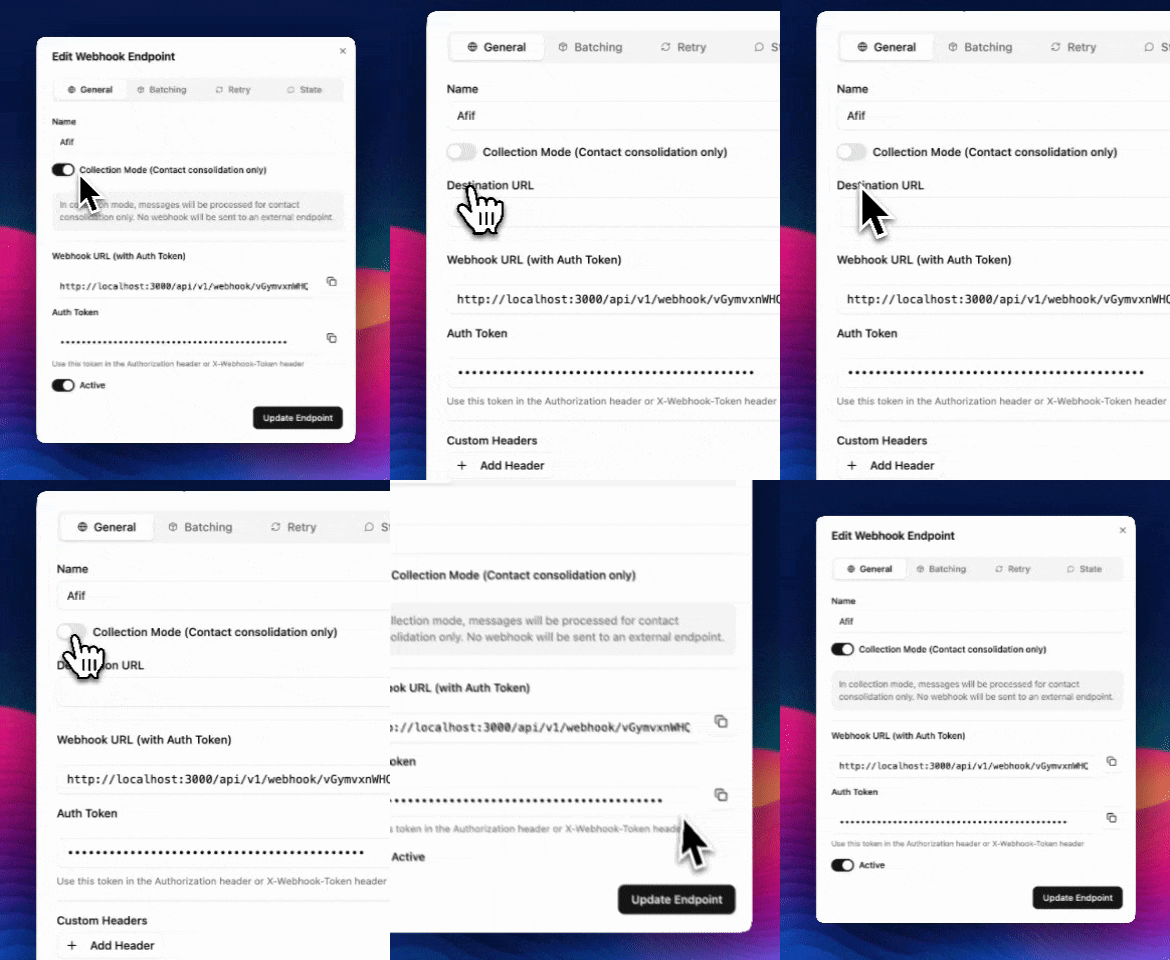
- Go to "Webhook Endpoints" in the sidebar
- Click on your endpoint
- Turn off Collection mode
- Enter your destination URL
- Update Endpoint
You can switch back to Collection Mode anytime if you need to pause forwarding temporarily.
Managing Your Endpoints
Viewing All Endpoints
Your endpoints list shows:
- Name - What you called the endpoint
- Status - Active (✅) or Inactive (❌)
- Messages Sent - How many messages were delivered
- Success Rate - Percentage of successful deliveries
Editing an Endpoint
- Click on the endpoint name
- Make your changes
- Click "Save Changes"
Turning Endpoints On/Off
Use the toggle switch next to each endpoint to:
- On - Messages will be sent to this endpoint
- Off - Messages will be held until you turn it back on
Setting Up Priority
When you have multiple endpoints, priority decides which one gets checked first:
- Click "Set Priority"
- Drag endpoints up or down to reorder them
- Higher position = Higher priority
- Click "Save Order"
Example priority setup:
- 1st: VIP Customers endpoint
- 2nd: Regular Support endpoint
- 3rd: General inquiries endpoint
Message Batching
Instead of sending messages one by one, Bouncer can group them together:
What is Batching?
If someone sends you 5 messages quickly, Bouncer can:
- Without batching: Send 5 separate notifications
- With batching: Send 1 notification with all 5 messages
Turning on Batching
- Click on your endpoint
- Find "Message Batching"
- Toggle it On
- Choose how long to wait (usually 5-10 seconds works well)
This reduces notifications and keeps conversations together.
Monitoring Your Endpoints
Activity Dashboard
See how your endpoints are performing:
- Green Circle - Everything working perfectly
- Yellow Circle - Some issues, but messages still going through
- Red Circle - Endpoint not working, needs attention
Recent Activity
View your last 50 messages:
- When they were sent
- If they were delivered successfully
- How long delivery took
What to Check
Look for these signs of healthy endpoints:
- ✅ Success rate above 95%
- ✅ Response time under 2 seconds
- ✅ No error messages
Troubleshooting Common Issues
Messages Not Being Received
Check endpoint is active:
- Make sure the toggle is ON
- Look for the green active status
Verify the URL:
- Check for typos in the web address
- Ask your IT team if the address changed
- Try the test button again
Check patterns:
- Make sure phone number patterns are correct
- Use
*if you want all messages
Endpoint Shows Red/Error Status
This usually means:
- The destination website is down
- The web address changed
- Your subscription limit was reached
What to do:
- Contact your IT team or service provider
- Verify the web address is correct
- Check your subscription status
Messages Are Delayed
If messages take too long:
- Check your internet connection
- Look at the activity log for error messages
- Try turning the endpoint off and on again
Best Practices
Keep It Simple
- Start with one endpoint for all messages
- Add more endpoints only when needed
- Use clear, descriptive names
Regular Checks
- Check your endpoints weekly
- Look at success rates
- Test endpoints after any changes
Organization Tips
- Group similar endpoints together
- Use consistent naming patterns
- Document what each endpoint does
Common Use Cases
Customer Support Setup
Create one endpoint for all support messages:
- Name: "Support Tickets"
- Pattern:
*(all messages) - Send to: Your helpdesk system
Sales and Support Split
Two endpoints for different teams:
Sales Endpoint:
- Name: "Sales Inquiries"
- Pattern: Messages containing "price", "buy", "purchase"
- Send to: CRM system
Support Endpoint:
- Name: "Support Requests"
- Pattern: All other messages
- Priority: Lower than sales
Multi-Country Business
Different endpoints by country:
US Customers:
- Pattern:
+1* - Send to: US team system
International:
- Pattern:
* - Priority: Lower
- Send to: Global team system
Getting Help
Quick Tips
- 💡 Start with one endpoint and expand later
- 💡 Test endpoints regularly
- 💡 Use batching for busy accounts
- 💡 Keep endpoint names descriptive
Need Assistance?
If you need help setting up your endpoints:
- Check the status indicators - They often show what's wrong
- Use the test button - It will tell you if there's a connection issue
- Contact support - We're here to help get you connected
Remember: Webhook endpoints are just delivery addresses. Keep them simple, test them regularly, and they'll reliably deliver your messages where they need to go.
Ready to set up your endpoints? Go to Webhook Endpoints in your dashboard!