 Bouncer Docs
Meta Cloud API
Connect WhatsApp using Meta's official Cloud API
Connect your WhatsApp Business Account directly through Meta's Cloud API for reliable, high-volume messaging.
Before you start
You'll need:
- A Meta Business account
- A verified WhatsApp Business phone number
- Permission to connect the number to external apps
- A payment method (credit/debit card) attached to your WhatsApp Business Account
- An approved WhatsApp Business Account
Payment method required: Before you can send messages, your WhatsApp Business Account must have a valid payment method. Learn how to add a payment method.
Check your WhatsApp account status
Before connecting, make sure your WhatsApp Business Account is approved by Meta:
- Go to Meta Business Suite
- Navigate to WhatsApp Account in the sidebar
- Select your WhatsApp Business Account
- Click Summary
- Verify the Account status shows "Approved"
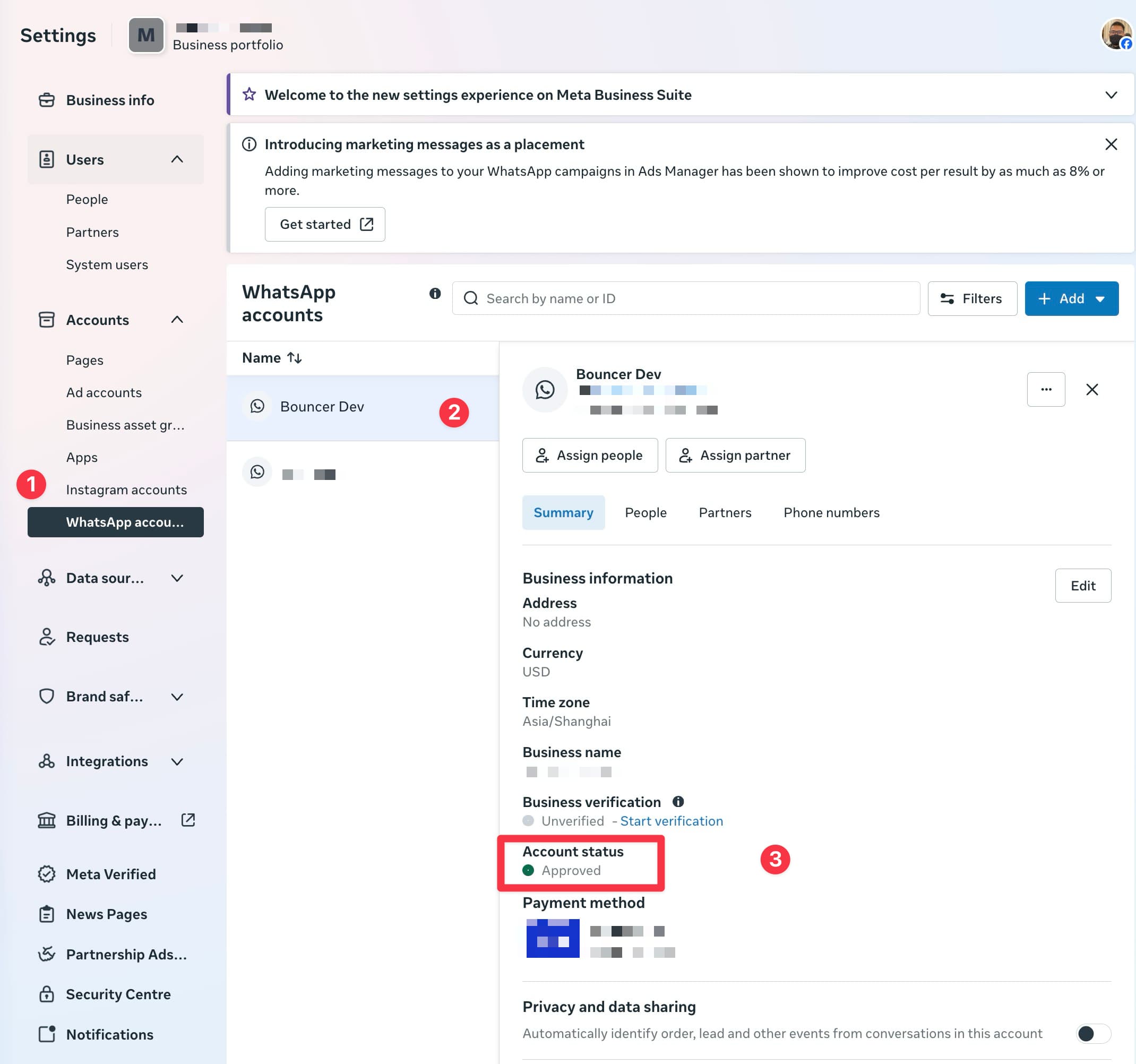
If your account is not approved, you'll need to complete Meta's verification process before you can connect to Bouncer.
Create or link a WhatsApp Business Account
During the connection process, you can either:
- Create a new WhatsApp Business Account - Set up a fresh account for your business
- Link with an existing WhatsApp Business Account - Connect an account you already have
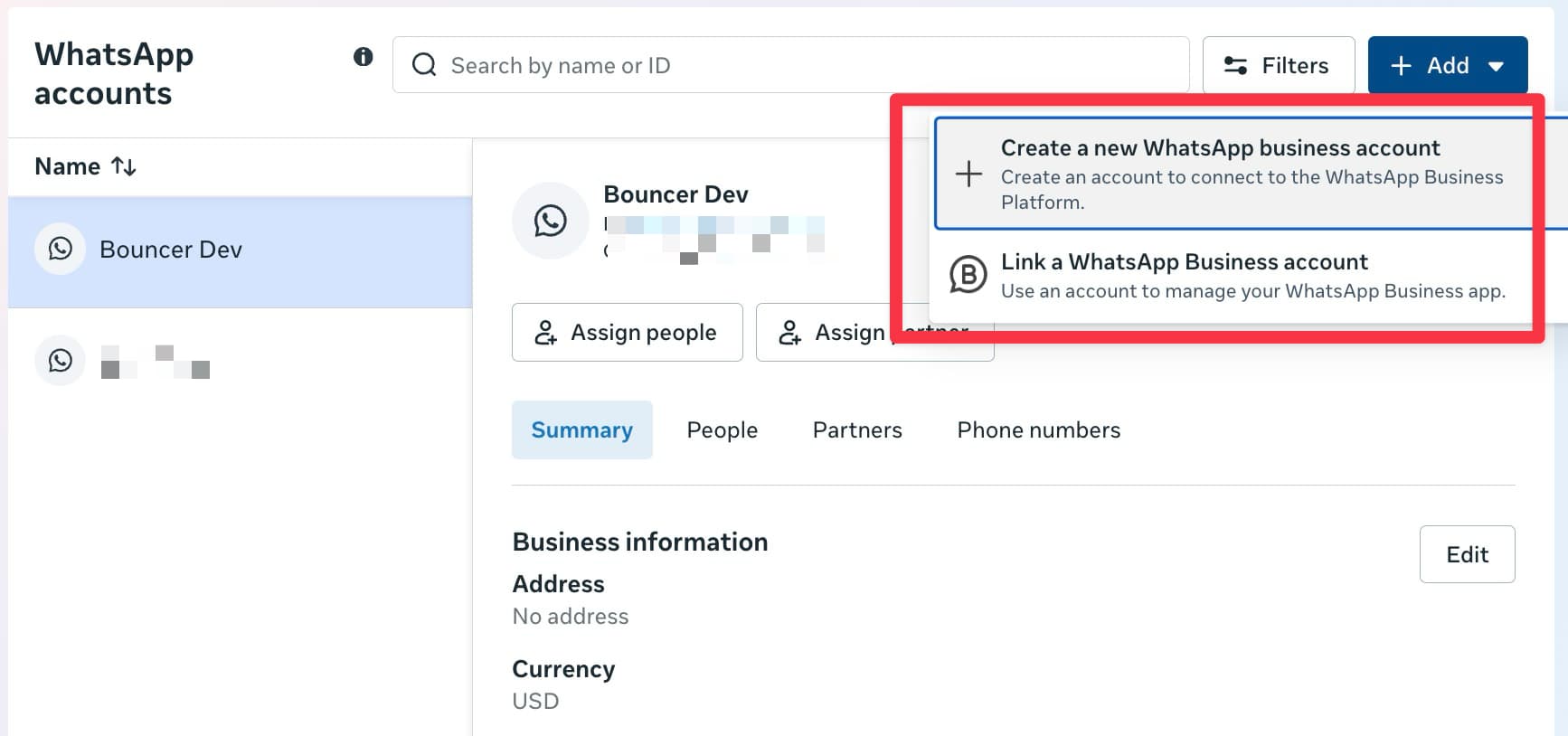
Important for linking existing numbers: The phone number you want to use must not be registered or in use with any WhatsApp account or WhatsApp Business app on mobile. If the number is currently active on WhatsApp, you'll need to delete that account first before linking it to the Cloud API.
Connect your account
- Go to WhatsApp Connections in the sidebar
- Click Connect with Cloud API
- Click Continue with Meta to open Meta's login popup
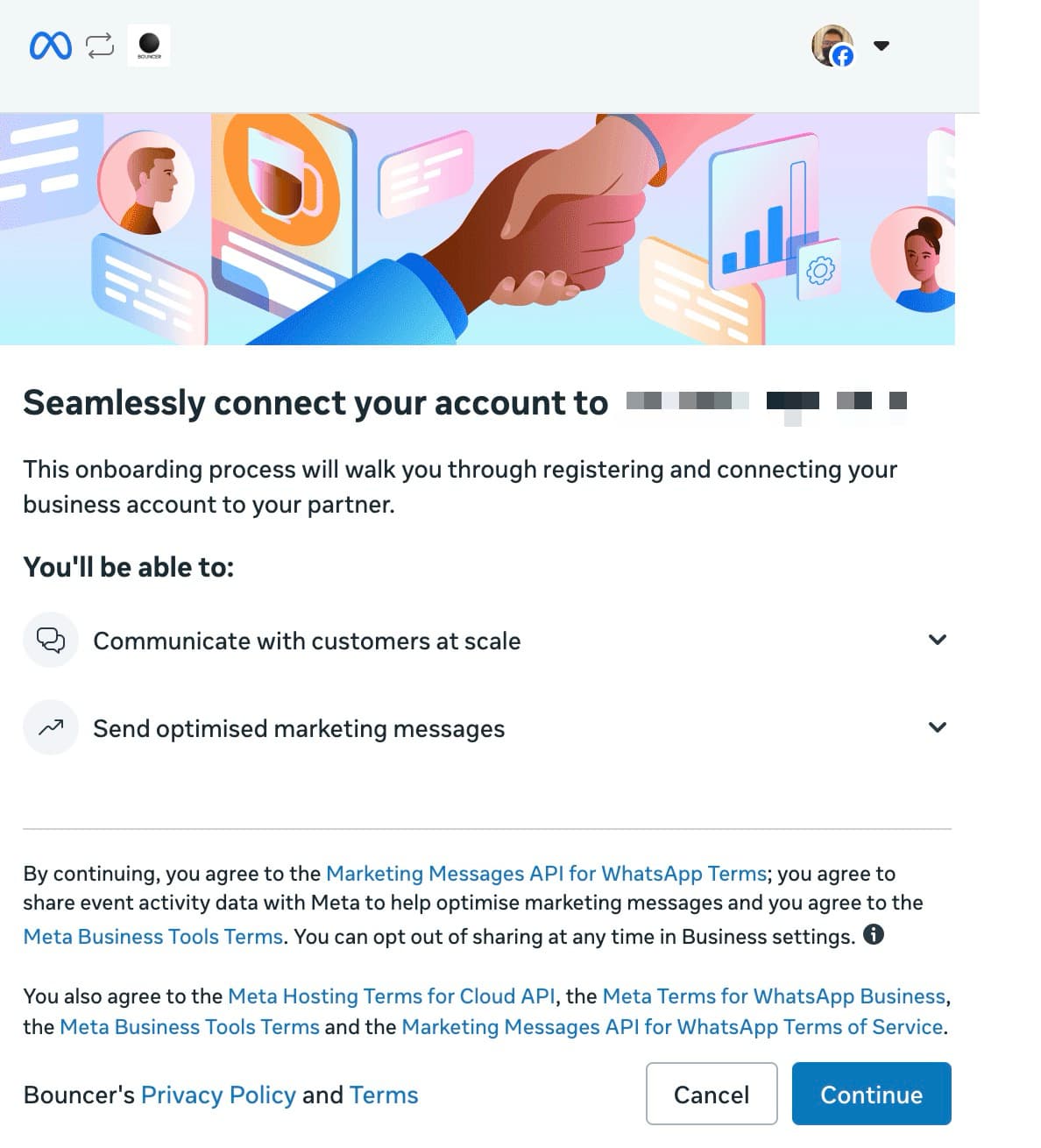
- Sign in to your Meta Business account
- Select the WhatsApp Business Account you want to connect
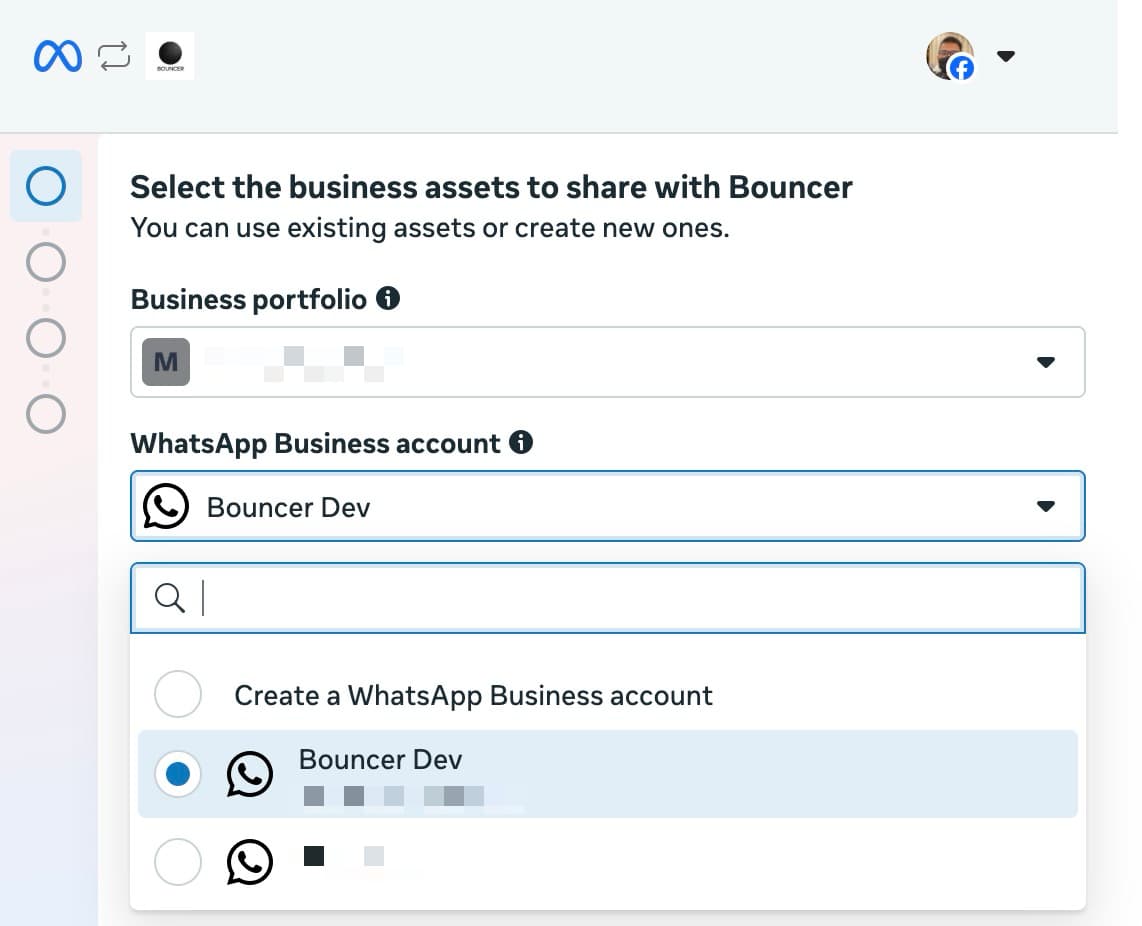
- Grant the required permissions
Select your phone number
After authenticating with Meta, you'll see a list of phone numbers associated with your WhatsApp Business Account.
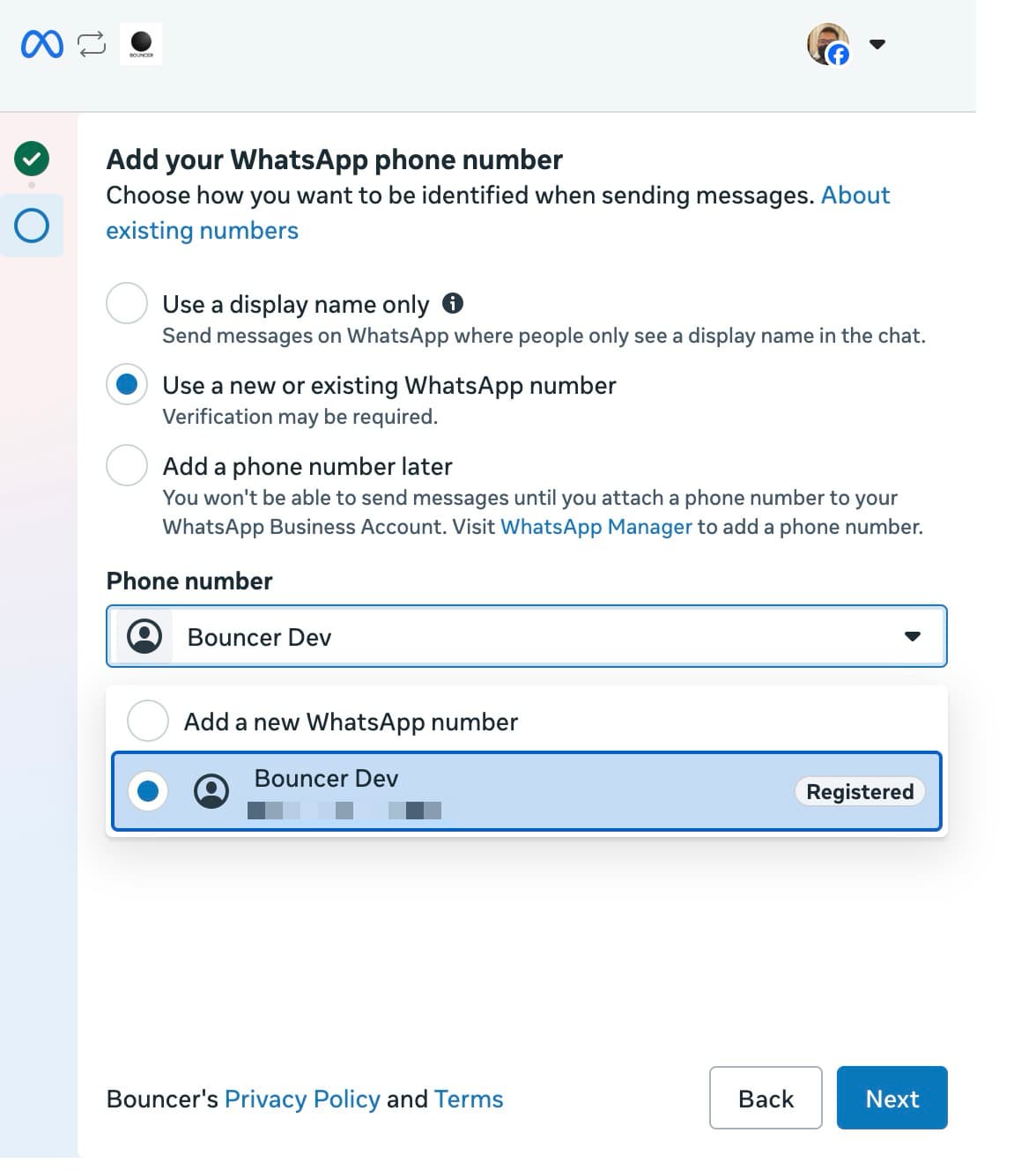
Click on the phone number you want to connect. Each number shows:
- Display name - The name shown to customers
- Phone number - The full number with country code
- Quality rating - Meta's rating (GREEN, YELLOW, or RED)
Configure your instance
Give your connection a friendly name to identify it in your dashboard.
Click Complete Setup to create the connection.
Register your phone number
If your phone number hasn't been registered with WhatsApp Cloud API before, you'll need to complete registration.
Using WhatsApp coexistence? You don't need to register your phone number if you're using coexistence mode (where you scan a QR code from Meta). Phone registration is only required when using Cloud API 100% without the WhatsApp mobile app.
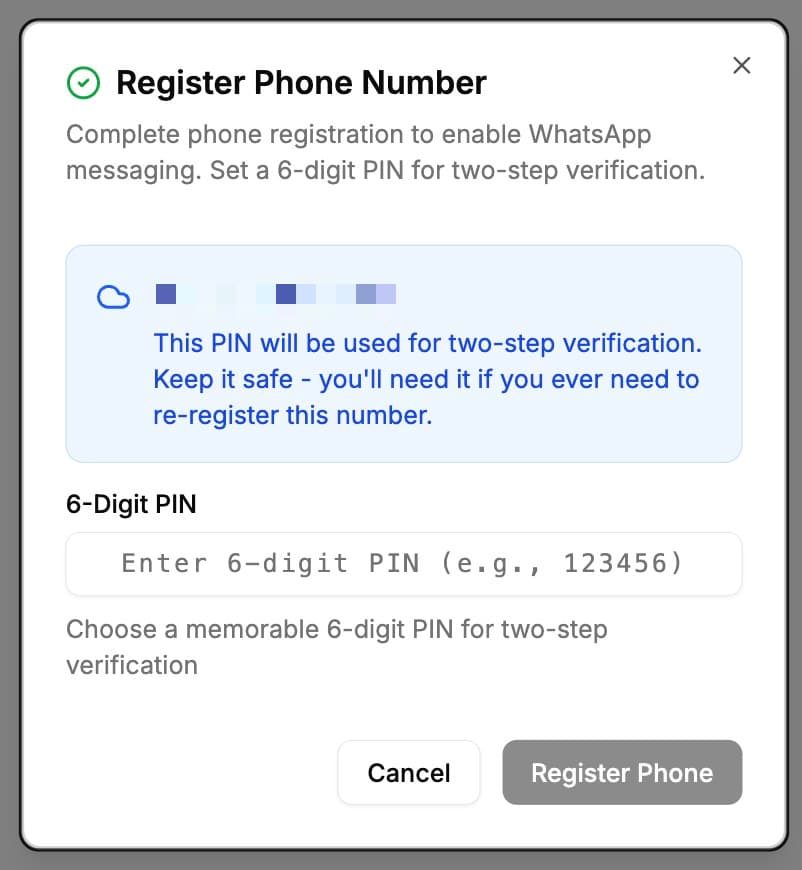
- Create a 6-digit PIN
- Click Register Phone
This PIN is used for two-factor authentication. Remember it for future verifications.
You can skip this step and register later from your instance settings, but you won't be able to send messages until registration is complete.
Transfer from a previous provider
If your phone number was previously connected to another WhatsApp Business API provider, you'll need to transfer it to Bouncer.
You know your PIN
If you remember the 2FA PIN you set with your previous provider, simply enter it during the connection process to complete the transfer.
You forgot your PIN
If you don't remember your PIN, you can reset it:
- Toggle off Two-step verification in the transfer dialog
- Follow the instructions sent to the email associated with your WhatsApp Business Account
- Once reset, you can proceed with the transfer
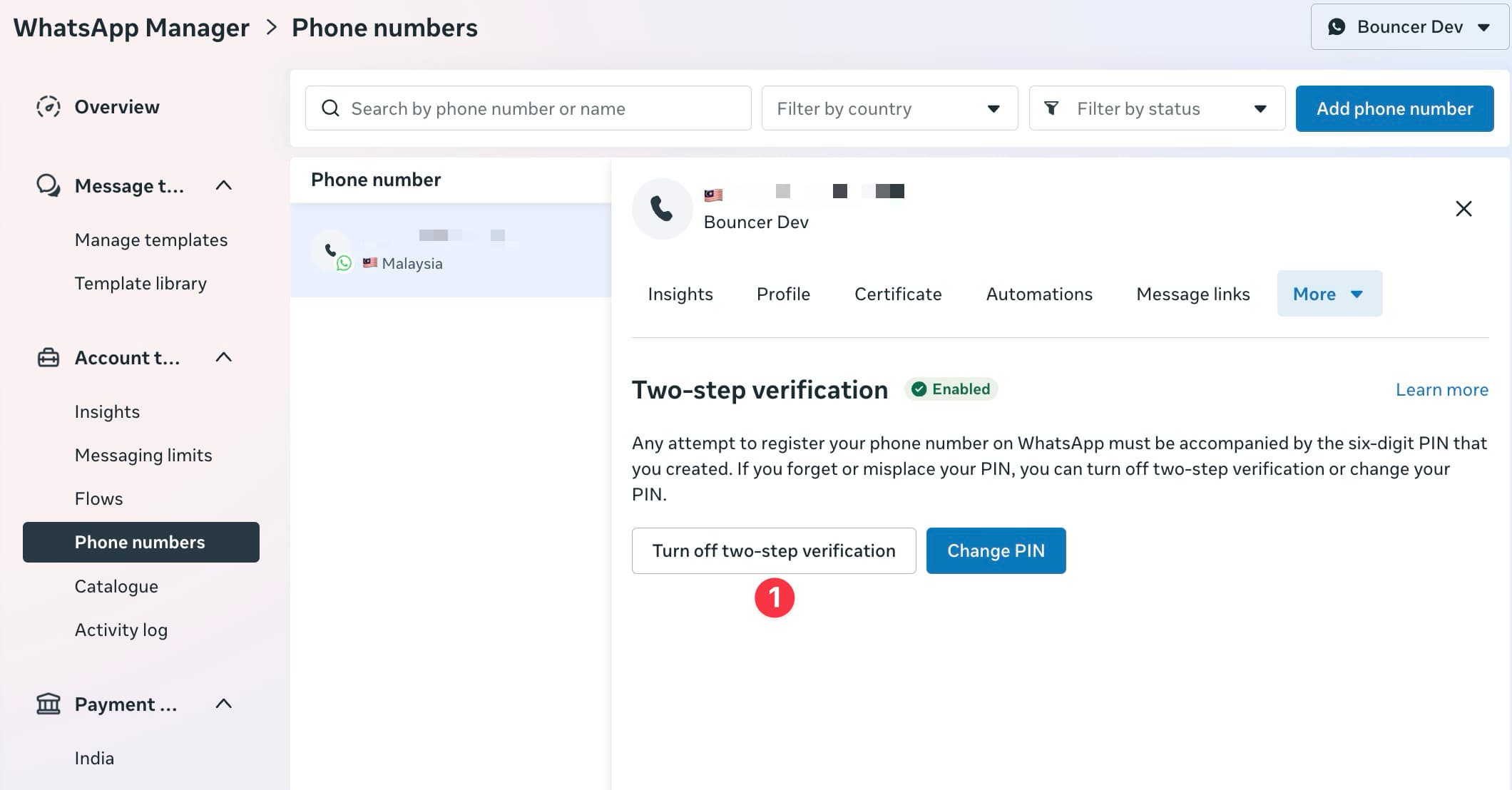
Note: The PIN reset process may take a few minutes. Check your email inbox and spam folder for the reset instructions from Meta.
Verify your connection
Once setup is complete, your WhatsApp Cloud API instance will appear in your connections list with a connected status.
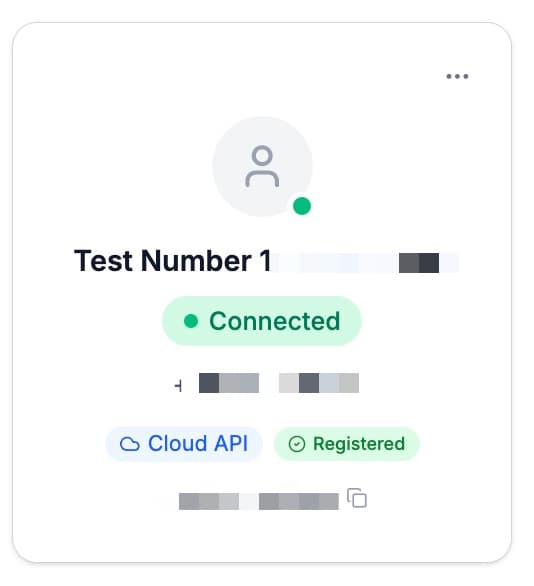
You can now:
- Send and receive messages through the team inbox
- Set up automations and workflows
- Create webhook endpoints for custom integrations
Troubleshooting
Meta popup doesn't appear - Check that your browser allows popups from this site. Try disabling popup blockers temporarily.
No phone numbers shown - Make sure your Meta Business account has at least one WhatsApp Business Account with a verified phone number.
Registration fails - The phone number may already be registered elsewhere. Contact Meta support to transfer the number.
Cloud API not configured - If you see this message, your administrator needs to set up the Meta App credentials in Bouncer's admin settings.
Delay in getting approved - If your WhatsApp Business Account approval is taking too long, check for connected partners that may be blocking the process:
- Go to Meta Business Suite
- Navigate to WhatsApp Account > Partners
- Remove any partners you no longer need
- Refresh the page and check if your account status changed to "Approved"
If the status doesn't update immediately, wait a few minutes and check again. Meta's approval process can sometimes take additional time after removing partners.