 Bouncer Docs
WhatsApp Templates
Create and manage message templates for Cloud API
WhatsApp Cloud API requires pre-approved message templates for starting conversations with customers. Templates ensure your messages meet Meta's quality standards.
Go to WhatsApp Templates in your dashboard sidebar to manage templates.
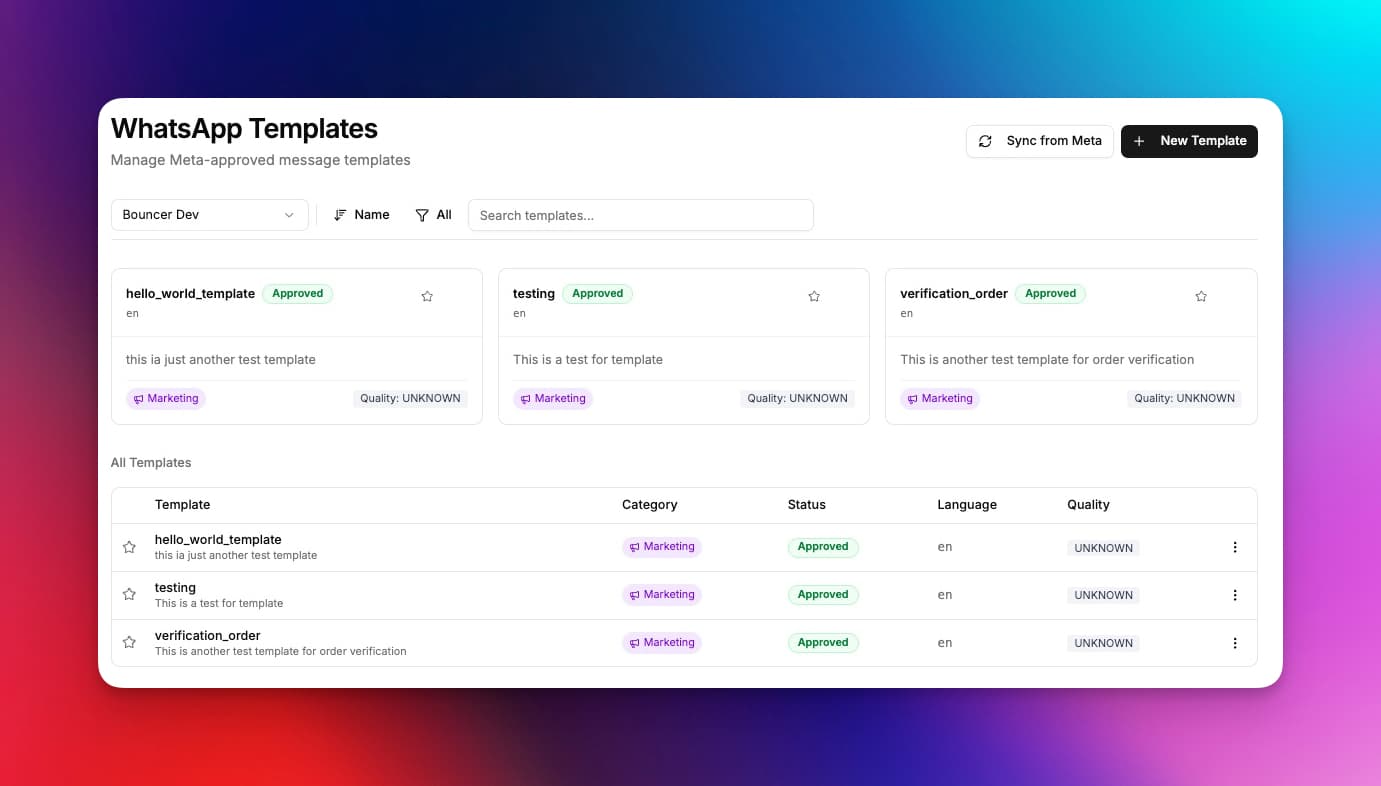
Sync templates from Meta
If you've already created templates in Meta Business Manager, sync them to Bouncer:
- Select your Cloud API instance from the dropdown
- Click Sync Templates
- Your templates will appear in the list
Syncing imports all templates from your WhatsApp Business Account, including their current approval status.
Create a new template
- Click Create Template
- Select your Cloud API instance
- Fill in the template details:
- Name - Lowercase letters, numbers, and underscores only (e.g.,
order_confirmation) - Category - Utility, Marketing, or Authentication
- Language - Select from available languages
- Name - Lowercase letters, numbers, and underscores only (e.g.,
- Build your template content:
- Header (optional) - Text, image, video, or document
- Body - Your message text
- Footer (optional) - Small text at the bottom
- Buttons (optional) - Quick replies, URLs, or phone numbers
- Click Submit for Review
Using variables
Add dynamic content to your templates using variables:
Hi {{1}}, your order #{{2}} has been shipped!Variables are numbered sequentially: {{1}}, {{2}}, {{3}}, etc. You'll provide the actual values when sending the message.
Adding buttons
Templates can include up to 3 buttons:
- Quick Reply - Predefined response options
- URL - Link to a website (can include one variable)
- Phone Number - Click-to-call button
- Copy Code - For authentication codes
Template statuses
After submitting, Meta reviews your template:
| Status | Meaning |
|---|---|
| Pending | Under review by Meta (usually 24-48 hours) |
| Approved | Ready to use for sending messages |
| Rejected | Did not meet Meta's guidelines - edit and resubmit |
| Paused | Temporarily disabled due to quality issues |
| Disabled | Permanently disabled - create a new template |
If your template is rejected
- Check the rejection reason in Meta Business Manager
- Edit your template to address the issue
- Resubmit for review
Common rejection reasons:
- Promotional content in Utility category
- Missing opt-out option for Marketing
- Placeholder text or test content
Template categories
Template category affects more than approval. It also affects how Meta treats the message and what it may cost to send.
For current category-based pricing, check Meta's official pricing page:
As of April 5, 2026, that page is the best source of truth for current WhatsApp template pricing.
Utility
For expected, non-promotional messages:
- Order confirmations and updates
- Appointment reminders
- Shipping notifications
- Account alerts
Utility templates have the highest delivery rates and lowest costs.
Marketing
For promotional content (requires customer opt-in):
- Special offers and discounts
- Product announcements
- Newsletters
- Re-engagement campaigns
Marketing templates require explicit customer consent and must include opt-out instructions.
Authentication
For verification and security:
- One-time passwords (OTP)
- Login verification codes
- Account verification
Authentication templates have special formatting and a short expiry time.
Sending template messages
Once approved, use templates to start conversations:
- Open a conversation in the team inbox
- Click the template icon
- Select your template
- Fill in any variable values
- Send
You can also send templates via the API. See the API documentation for details.
Requirements and limits
Meta enforces strict rules on template content — character limits, variable format, button constraints, and content policies. If your template doesn't follow these rules, it will be rejected.
See the full reference: Template Requirements & Limits
Best practices
- Be specific - Use clear, descriptive template names
- Choose the right category - Miscategorization leads to rejections
- Test variables - Ensure your variable placeholders make sense
- Keep it concise - Shorter messages have better engagement
- Avoid spam triggers - Don't use ALL CAPS or excessive punctuation