 Bouncer Docs
Message Routing
Choose how Bouncer handles your incoming WhatsApp messages
Message routing controls what happens when someone sends you a WhatsApp message. Bouncer offers three routing modes to fit different use cases.
No setup required to get started. Collection mode is enabled by default when you connect a WhatsApp number. Your messages are automatically stored in Bouncer and accessible from the team inbox. You only need to change the routing mode if you want to integrate with external systems like CRMs or helpdesks.
Routing modes
| Mode | What it does | Best for |
|---|---|---|
| Collection | Stores messages in Bouncer | Using the team inbox without external systems |
| Forwarding | Sends messages to your URL | Connecting to CRMs, helpdesks, or custom apps |
| Workflow | Triggers a visual workflow | Automating responses with logic and AI |
How routing works
When you connect a WhatsApp number, Bouncer creates a routing endpoint for it. This endpoint determines where messages go:
- A message arrives from WhatsApp
- Bouncer checks the routing endpoint for that number
- Based on the mode, Bouncer either stores, forwards, or processes the message
Choosing a mode
Start with Collection mode if you're using Bouncer's team inbox to chat with customers directly. Messages are stored and accessible from your dashboard.
Switch to Forwarding mode when you need messages delivered to an external system like a CRM, helpdesk, or custom application.
Use Workflow mode to automate responses with visual logic - auto-replies, AI agents, conditional routing, and more.
Changing modes
You can switch between modes anytime from the Webhook Endpoints page:
- Go to Webhook Endpoints in the sidebar
- Click on your endpoint
- Select a different mode
- Save changes
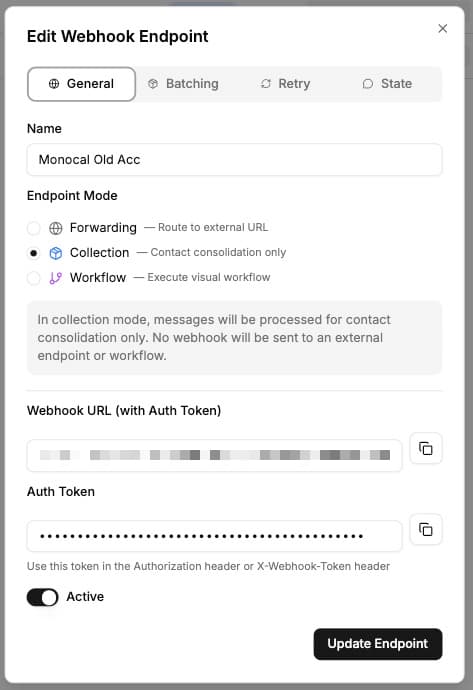
Messages already processed won't be affected - the new mode applies to future messages.