 Bouncer Docs
Info Tab
Contact details, acquisition source, and sales pipeline
The Info tab in the Contact Info Panel shows detailed information about your contact, including where they came from and their position in your sales pipeline.
Custom fields
Add custom information to contacts that's specific to your business. Custom fields can include:
- Customer ID
- Company name
- Preferred language
- Account type
- Any other data relevant to your workflow
Custom fields are editable directly from the Info tab.
Acquisition source
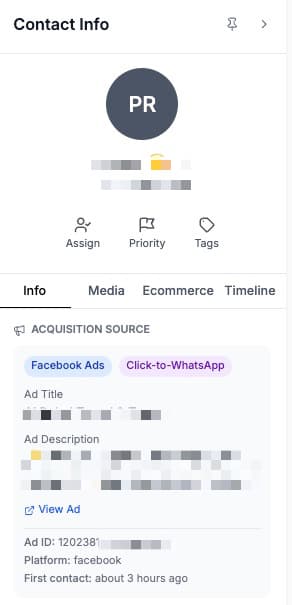
See where your contact came from. Bouncer automatically tracks the source when contacts message you through ads or campaigns.
Supported sources
| Source | Information tracked |
|---|---|
| Facebook Ads | Ad ID, ad title, ad body, media URL |
| Instagram Ads | Ad details and campaign info |
| TikTok | Campaign source and entry point |
| Click-to-WhatsApp Ads | CTWA click ID and conversion time |
Source details
When a contact comes from an ad, you'll see:
- Source app - Facebook, Instagram, TikTok, etc.
- Entry point - How they reached you (ad click, story, etc.)
- Conversion delay - Time between seeing the ad and messaging
- Ad preview - Thumbnail and content of the ad they clicked
This helps your team understand context before responding and measure ad performance.
Sales pipeline
Track contacts through your sales process by assigning them to pipeline stages.
Moving contacts through stages
- Open the Info tab
- Find the Pipeline section
- Select a pipeline (if you have multiple)
- Choose the appropriate stage
Pipeline stages example
A typical sales pipeline might include:
- New Lead - Just contacted, not yet qualified
- Qualified - Confirmed interest and budget
- Proposal Sent - Waiting for decision
- Negotiation - Discussing terms
- Won - Deal closed successfully
- Lost - Did not convert
Using pipelines effectively
- Update stages as conversations progress
- Use pipeline views to see all contacts at each stage
- Track conversion rates between stages
- Identify bottlenecks in your sales process
Pipelines are configured in Settings. You can create multiple pipelines for different products or services.