 Bouncer Docs
Working with Deals
Create, manage, and track deals in your pipeline
Deals represent contacts moving through your sales process. Each deal is a card on your pipeline board.
Creating a deal
- Click the + button in any stage column
- Select a contact or enter a phone number
- Add deal details (title, value, priority)
- Click Save
Or assign a contact to a pipeline from the Contact Info Panel.
Moving deals
Drag and drop
Drag a deal card to another stage column. The deal updates immediately.
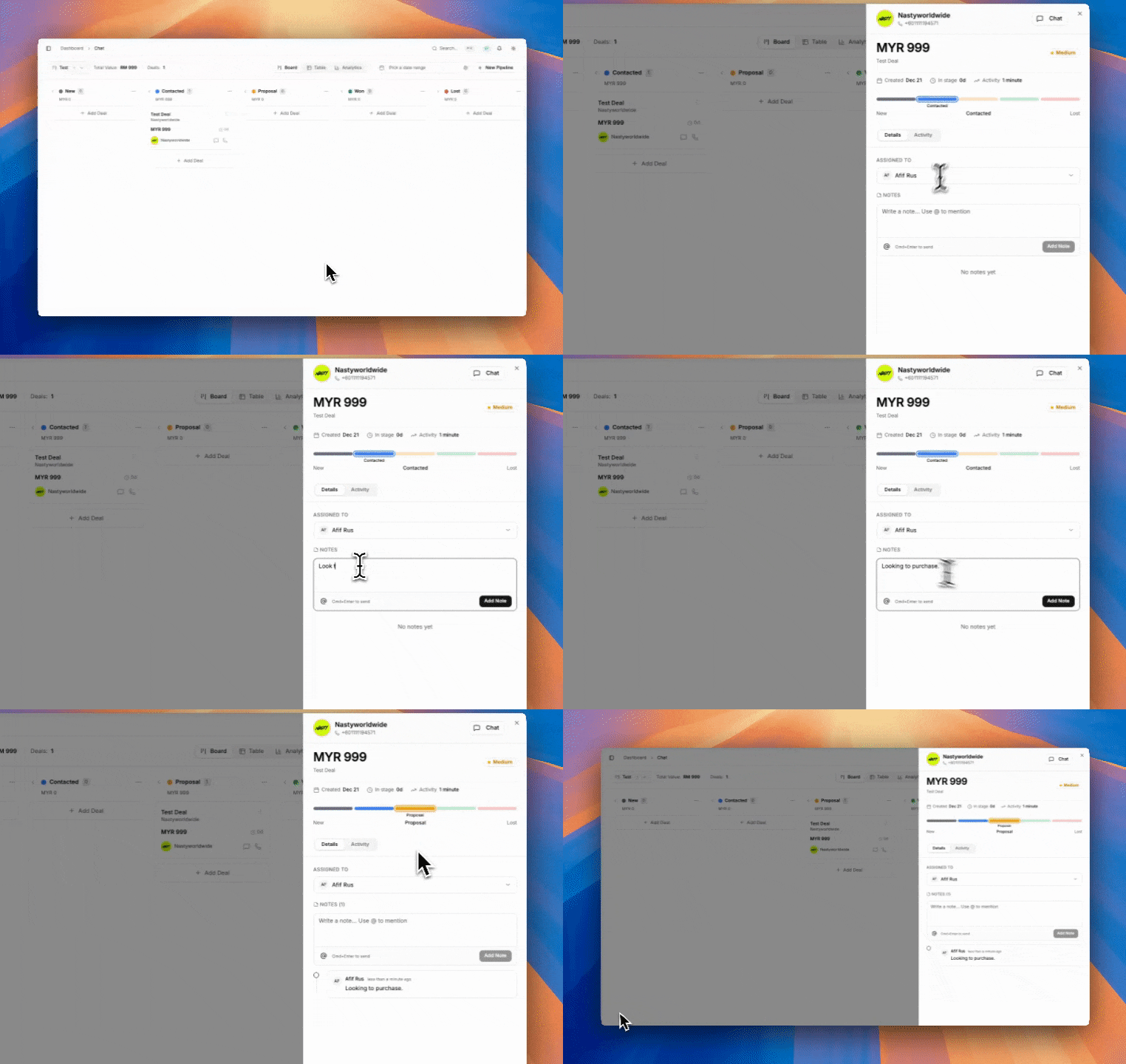
Quick edit
Click a deal card to open the quick edit panel, then change the stage in the dropdown.
Deal information
Each deal card shows:
| Field | Description |
|---|---|
| Contact name | From WhatsApp or your custom name |
| Deal value | Monetary value with currency |
| Priority | High, Medium, or Low |
| Days in stage | How long the deal has been in the current stage |
| Rotting indicator | Warning when deals stay too long in a stage |
Editing a deal
Click on any deal card to open the quick edit panel. You can update:
- Title - Custom name for the deal
- Value - Deal amount and currency
- Priority - High, Medium, or Low
- Stage - Move to a different stage
- Notes - Internal notes about the deal
- Assigned to - Team member responsible
Deal rotting
Deals that stay too long in a stage show visual warnings to help you identify stale opportunities.
| Status | Indicator | Meaning |
|---|---|---|
| Healthy | Green | Recently active, on track |
| Warning | Yellow | May need attention soon |
| Danger | Red | Stale, needs immediate follow-up |
Rotting thresholds
Each stage can have its own rotting threshold. For example:
- New Lead: 3 days before warning
- Proposal: 7 days before warning
- Negotiation: 14 days before warning
Configure rotting thresholds when editing your pipeline stages.
Closing deals
Won deals
When a deal closes successfully:
- Drag it to the Won stage, or
- Click the deal and select Won from the stage dropdown
Lost deals
When a deal doesn't convert:
- Drag it to the Lost stage, or
- Click the deal and select Lost from the stage dropdown
- Optionally add a reason (e.g., "Price too high", "Chose competitor")
Closed deals are removed from the active board but remain in analytics and history.