 Bouncer Docs
Sales Pipeline
Track deals and manage your sales process visually
The Sales Pipeline helps you track conversations through your sales process. Visualize deals on a Kanban board, move them between stages, and monitor your team's performance.
Access the pipeline from Chat > Pipeline view, or go directly to app.bouncer.my/dashboard/chat?view=pipeline.
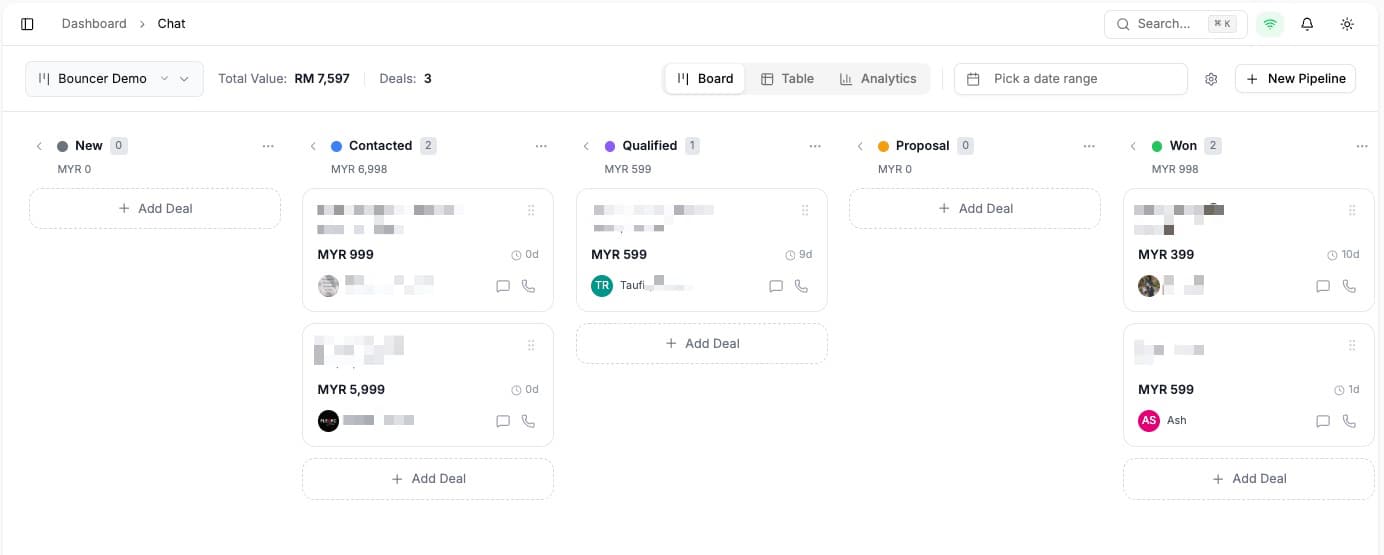
Pipeline overview
The pipeline displays your deals as cards organized into stages (columns). Each card represents a contact moving through your sales process.
Views
Switch between three views using the tabs:
| View | Description |
|---|---|
| Board | Kanban-style view with drag-and-drop |
| Table | List view with sortable columns |
| Analytics | Charts and metrics for pipeline performance |
Creating a pipeline
- Click the Pipeline dropdown at the top
- Click New Pipeline
- Enter a pipeline name
- Add stages (e.g., New Lead, Qualified, Proposal, Negotiation, Won, Lost)
- Click Create
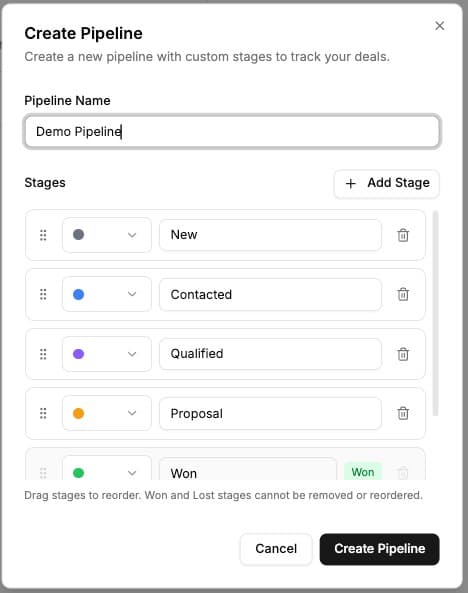
You can create multiple pipelines for different products, services, or sales processes.
Managing stages
Each pipeline has customizable stages that represent steps in your sales process.
Adding stages
- Click Settings (gear icon) next to the pipeline dropdown
- Click Add Stage
- Enter stage name and color
- Set stage type: Open, Won, or Lost
Reordering stages
Drag stages left or right to change their order in the pipeline.
Stage types
- Open - Active deals still in progress
- Won - Successfully closed deals
- Lost - Deals that didn't convert
Filtering deals
By date range
Use the date picker to filter deals by when they were created or last updated.
By pipeline
Select a specific pipeline from the dropdown to view only its deals.