 Bouncer Docs
Chat Analytics
Track conversation metrics and team performance
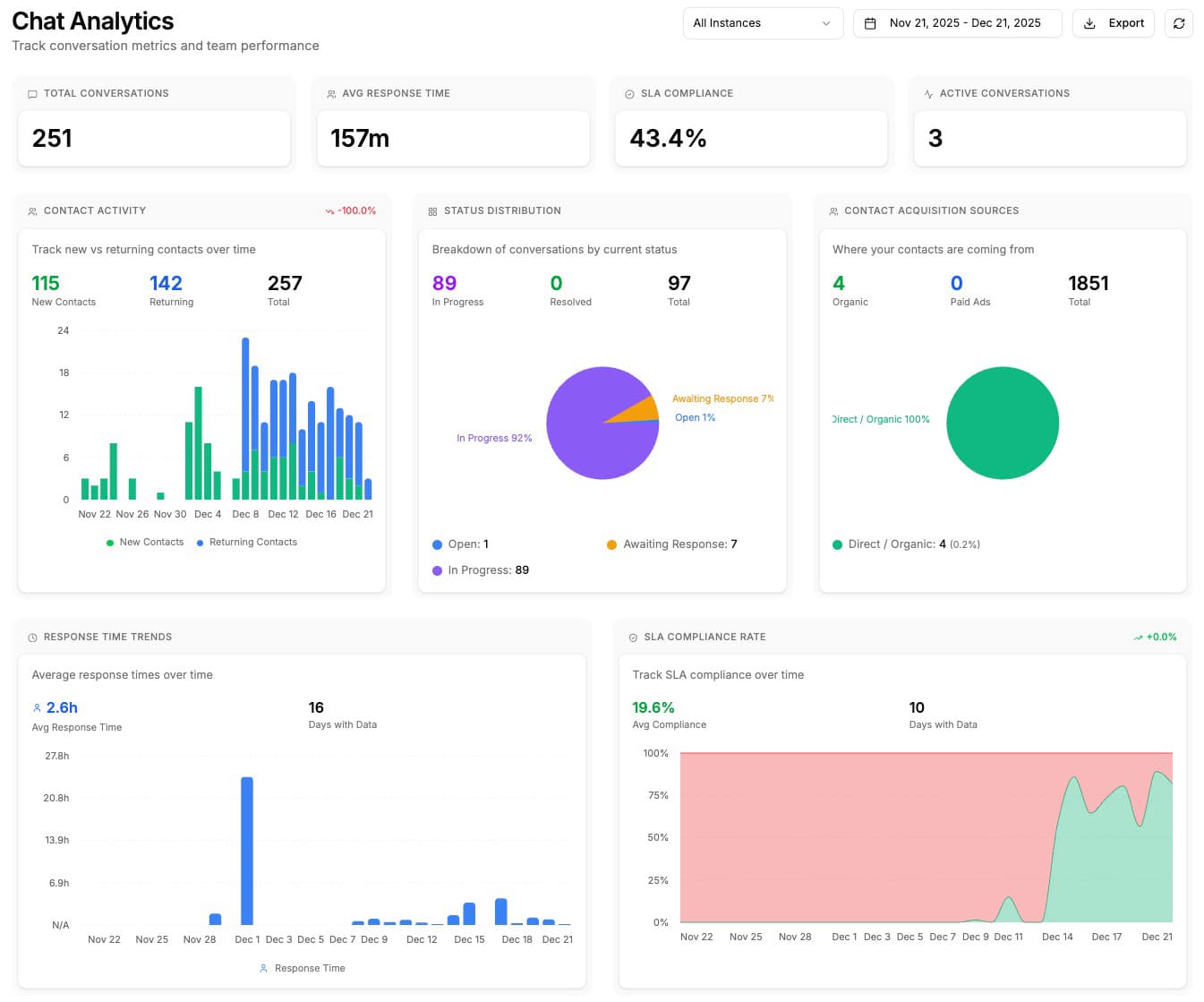
The Chat Analytics dashboard gives you insights into conversation volume, response times, team performance, and where your contacts come from.
Access Analytics from Chat in the sidebar, then select the Analytics tab from the view switcher, or go directly to app.bouncer.my/dashboard/chat?view=analytics.
Filtering data
Use the controls at the top to filter your analytics:
- Instance dropdown - Filter by a specific WhatsApp number, or view all instances combined
- Date range picker - Select the time period to analyze (default: last 30 days)
- Refresh button - Manually refresh all charts with latest data
- Export button - Download reports as CSV files
Summary cards
Four cards at the top provide a quick overview:
| Card | What it shows |
|---|---|
| Total Conversations | Number of conversations in the selected period |
| Avg Response Time | Average time (in minutes) for a human to respond |
| SLA Compliance | Percentage of conversations responded to within your target time |
| Active Conversations | Conversations currently open or in progress |
Contact Activity
A stacked bar chart showing daily contact volume:
- New Contacts (green) - First-time conversations from new phone numbers
- Returning Contacts (blue) - Conversations from existing contacts
Use this to spot trends in acquisition and understand how many contacts come back for follow-up conversations.
Status Distribution
A pie chart breaking down conversations by their current status:
| Status | Meaning |
|---|---|
| Open | New, unhandled conversations |
| Awaiting Response | Waiting for customer reply |
| In Progress | Being actively handled by an agent |
| Resolved | Issue addressed, conversation complete |
| Closed | Manually closed by agent |
| Archived | Removed from active view |
This helps identify bottlenecks. Too many "Open" conversations may mean your team needs to pick up the pace; too many "Awaiting Response" may indicate customers aren't engaging.
Acquisition Source
A donut chart showing where your contacts come from:
| Source | Description |
|---|---|
| Organic | Direct WhatsApp messages (not from ads) |
| Facebook Ads | Meta Click-to-WhatsApp ads on Facebook |
| Instagram Ads | Meta Click-to-WhatsApp ads on Instagram |
| TikTok | Contacts attributed via Attribution Engine rules |
| Contacts attributed via Attribution Engine rules | |
| Contacts attributed via Attribution Engine rules | |
| Contacts attributed via Attribution Engine rules | |
| YouTube | Contacts attributed via Attribution Engine rules |
| Unknown | Click-to-chat links without a matching attribution rule |
Click on a source to drill down into campaign and ad-level breakdowns (for Meta ads and Attribution Engine sources).
Response Time
A line chart tracking your average human response time over the selected period.
Lower is better. Use this to:
- Monitor team responsiveness
- Identify days with slower response times
- Track improvement after process changes
SLA Compliance
An area chart showing what percentage of conversations met your response time target each day.
- Green area - Compliant (responded within target)
- Red area - Breached (exceeded target time)
If you don't see data here, you need to configure SLA targets for your organization.
Instance Comparison
When you have multiple WhatsApp numbers connected and no instance filter applied, this chart compares key metrics across all instances:
- Total conversations per instance
- Average response time per instance
- SLA compliance per instance
Use this to identify which numbers need more attention or resources.
Exporting reports
Click Export to download CSV reports:
| Report | Contents |
|---|---|
| Daily Metrics | Day-by-day breakdown of all metrics |
| Conversation Details | Individual conversation data with timestamps and status |
| Team Performance | Agent-level metrics (response times, conversation counts) |
Reports respect your current date range and instance filter.