 Bouncer Docs
SLA Configuration
Set up response time targets for your team
Service Level Agreements (SLAs) define how quickly your team should respond to and resolve conversations. Configure SLA targets to track compliance in the Chat Analytics dashboard.
Go to app.bouncer.my/dashboard/sla-settings to configure your SLA settings.
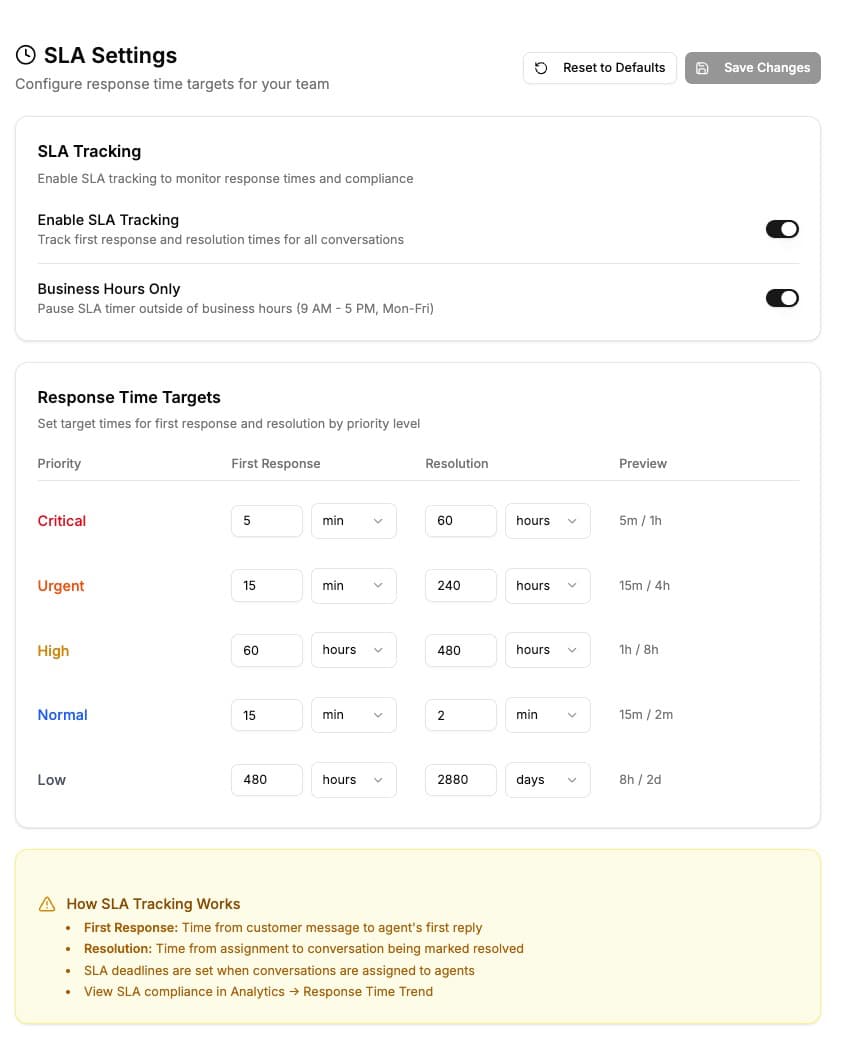
Enabling SLA tracking
Toggle Enable SLA Tracking to start measuring response times. When enabled, Bouncer tracks:
- First Response Time - How long until an agent sends the first reply
- Resolution Time - How long until the conversation is marked resolved
You can also enable Business Hours Only to pause the SLA timer outside of 9 AM - 5 PM, Monday through Friday. This prevents after-hours messages from counting against your response time targets.
Priority levels
Each conversation can have a priority level. By default, all conversations are set to Normal priority. You can change priority from the conversation panel.
Set different response time targets for each priority:
| Priority | Default First Response | Default Resolution | Use case |
|---|---|---|---|
| Critical | 5 minutes | 1 hour | System outages, payment issues |
| Urgent | 15 minutes | 4 hours | Time-sensitive requests |
| High | 1 hour | 8 hours | Important customer issues |
| Normal | 4 hours | 24 hours | Standard inquiries (default) |
| Low | 8 hours | 48 hours | Non-urgent follow-ups |
Configuring targets
For each priority level, set:
- First Response - Target time for the first agent reply (in minutes, hours, or days)
- Resolution - Target time to fully resolve the conversation
Enter a number and select the time unit. The preview column shows the formatted targets.
How SLA tracking works
- Customer sends a message → SLA timer starts
- Agent sends first reply → First Response SLA evaluated
- Conversation assigned → Resolution timer starts
- Conversation marked resolved → Resolution SLA evaluated
A conversation is compliant if both targets are met. It's breached if either target is exceeded.
Viewing SLA compliance
Once configured, view your SLA performance in:
- Chat Analytics → SLA Compliance chart shows daily compliance rate
- Summary cards → SLA Compliance percentage for the selected period
The chart displays:
- Green area - Conversations responded to within target
- Red area - Conversations that breached SLA targets
Best practices
- Start with realistic targets - Set achievable goals, then tighten them over time
- Use priority wisely - Reserve Critical/Urgent for truly time-sensitive issues
- Enable business hours - If you don't have 24/7 support, pause SLA outside work hours
- Review regularly - Check compliance weekly and adjust targets if needed
Resetting to defaults
Click Reset to Defaults to restore the standard SLA targets. You'll still need to click Save Changes to apply the reset.